
There are different ways to uninstall unwanted software, depending on how the software is installed on your Mac.

TABLE OF CONTENTS
What software cannot be uninstalled from macOS?
What are the different methods for installing software on a Mac?
There are various ways to install software on a Mac, depending on the source and format of the application. Below are the most common methods:
Mac App Store:
Applications can be downloaded and installed directly from the Mac App Store. These apps are verified by Apple to ensure they meet security and compatibility requirements.

Installer Packages (.pkg files):
Certain apps require installation via .pkg files, which include a guided setup process. This method is often used for software that needs to install additional files or make system-wide adjustments.
DMG Files (Disk Images):
Many third-party applications are provided as .dmg files. You download the file, open it, and drag the app into the Applications folder. Once installed, you can eject the disk image and delete the .dmg file.

ZIP Files:
Some apps are shared as compressed .zip files. After downloading, you simply unzip the file to access the app, which can then be moved to the Applications folder.

Terminal (Command Line):
For advanced users, the Terminal can be used to install software, especially open-source programs or developer tools. Package managers like Homebrew are often employed to simplify command-line installations.
Web Installers:
Some programs require a small web-based installer, which downloads and installs the full application from the internet.
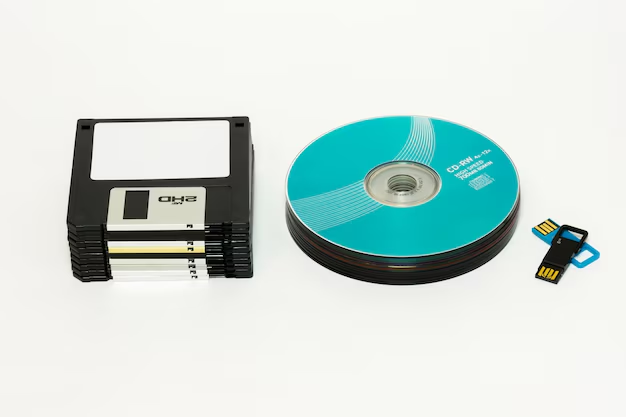
External Media (USB or Disk):
Software can also be installed from external storage devices like USB drives or DVDs, which may contain either the installer or the application itself.
Each method provides varying levels of ease and flexibility, depending on the type and source of the application.
Does the way a software was installed affect how you uninstall it?
Yes, the method used to install software on a Mac determines how you uninstall it. Here’s how it differs based on the installation method:
Apps from the Mac App Store:
These are the simplest to remove. You can drag the app from the Applications folder to the Trash or uninstall it via Launchpad by holding down the app icon and clicking the delete (X) button.
Apps Installed via DMG Files:
If an app was installed using a .dmg file, you can typically uninstall it by dragging it from the Applications folder to the Trash. However, leftover files such as caches or preferences may remain in system directories and may need to be removed manually or using a cleanup utility.
Installer Packages (.pkg):
Applications installed through .pkg files often distribute files across multiple system directories. To remove them, use the app’s built-in uninstaller if available or download an uninstaller from the developer’s site. If no uninstaller exists, you may need to manually delete associated files located in folders like /Library.
Command Line/Terminal Installations:
Programs installed using the Terminal, such as those via Homebrew, require specific command-line instructions to uninstall. For example, you can use brew uninstall <package> to cleanly remove Homebrew-installed software.
Apps Installed via Web Installers:
Programs installed using web installers often come with a dedicated uninstaller, either included during installation or available on the developer’s website.
Portable or Extracted Apps (e.g., ZIP Files):
Apps extracted from .zip files or run without a formal installation can be uninstalled simply by deleting the app file itself.
Built-in System Apps:
macOS includes some preinstalled apps that cannot be uninstalled unless system protections like SIP (System Integrity Protection) are disabled. However, modifying these apps is not recommended as it may compromise system stability.
For thorough app removal, especially for those leaving residual files, using specialized cleanup tools or following the developer’s instructions is often the best approach.
What third party tools exist to uninstall applications on a Mac?
everal third-party tools are available to help you uninstall applications on a Mac completely, including their associated files, preferences, and cache data. Here are some popular options:
- AppCleaner:
A free and lightweight tool that allows you to drag and drop applications to uninstall them. It scans for leftover files and provides a simple way to remove them alongside the app. - AppZapper:
A paid tool with a drag-and-drop interface that identifies and removes applications and their associated files. - TrashMe:
A user-friendly uninstaller that helps you remove apps and clean up associated files. It also includes tools for managing system files and preferences. - Osx Uninstaller:
A paid solution designed specifically for thoroughly uninstalling apps, especially those that may leave behind complex system files. - AppDelete:
A straightforward app removal tool that locates related files and lets you delete them along with the application.
These tools can save time and ensure thorough removal of applications, preventing unnecessary clutter on your Mac. Always download such tools from their official websites to ensure safety and avoid malware.
If I uninstall a software on my Mac will I lose the data I created in it?
Removing software from your Mac doesn’t necessarily mean you’ll lose the data created with it, but this depends on how the app manages user data. Here’s an overview:
Data Stored in Standard Locations:
If the app saves files like documents, images, or projects to common locations, such as the Documents folder, Desktop, or an external drive, these files will remain on your Mac even after the app is uninstalled. You can still open them with compatible programs.
Data Linked to the App:
Some programs store user data within their installation directory or in system folders like ~/Library/Application Support. Deleting these files during uninstallation may result in losing your data.
Cloud-Synced Applications:
For apps that sync data with the cloud (e.g., Google Drive, Dropbox, or iCloud), your files are typically stored online. Reinstalling the app or accessing your account through a web browser allows you to retrieve your data.
Backup Features:
Certain apps offer built-in backup options. For example, software like Microsoft Office or Adobe Creative Cloud often encourages saving files to their cloud storage, ensuring your data remains intact even after uninstalling the app.
Tips to Avoid Data Loss:
- Back up important files before uninstalling any software.
- Check where the app stores its data to ensure nothing critical is removed.
- Avoid deleting system files unless you’re confident they’re not needed.
If unsure, reinstalling the app later can often restore access to your data, as most programs don’t delete user files by default unless explicitly instructed.
If I uninstall an app from my Mac will it uninstall it from my other Macs or devices?Uninstalling an app from your Mac does not automatically remove it from your other devices. Each device functions independently, so deleting the app on one will not impact its installation on others.
However, there are a few important things to consider:
Apps from the Mac App Store:
If you use the same Apple ID on multiple Macs, the app will remain installed on other devices even if you uninstall it from one. You’ll need to manually uninstall it on each Mac.
Cloud-Synced Apps:
For apps like Dropbox or Google Drive that sync data across devices, uninstalling the app from one device won’t remove it from others. However, it might disrupt synced data if the app is no longer active on the uninstalled device.
Third-Party Subscriptions:
If the app is part of a subscription service, uninstalling it from one device won’t cancel the subscription or remove it from your other devices.
iOS Devices:
Removing an app from your Mac will not uninstall it from your iPhone, iPad, or other Apple devices, as macOS and iOS apps are managed separately.
To remove an app from all devices, you’ll need to uninstall it on each device individually. For apps that sync via accounts, you might also want to log out of your account to avoid lingering connections.
If I reinstall an app on my Mac will I need to repurchase or relicense it?
In most instances, reinstalling an app on your Mac doesn’t require you to repurchase or relicense it, though it depends on how the app was originally purchased or licensed. Here’s a breakdown:
Apps Bought from the Mac App Store:
If you acquired the app from the Mac App Store using your Apple ID, you can reinstall it for free on the same Mac or any other Mac signed in with that Apple ID. Simply go to the Purchased section of the App Store and download it again.
Subscription-Based Apps:
For apps that follow a subscription model (e.g., Microsoft 365, Adobe Creative Cloud), you can reinstall the app without needing to repurchase it, as long as your subscription is active. You’ll just need to log in with your account credentials to activate the app.
Standalone Licenses Purchased Outside the Mac App Store:
If you bought the app directly from the developer’s website, you may need the original license key or activation code to relicense it after reinstalling. Make sure to store this information securely for easy access.
Free Apps or Open-Source Software:
Free apps can typically be reinstalled without any extra steps.
Older Software Versions:
If the app is no longer supported or if the developer has released a newer version, you may need to purchase or upgrade to the latest version if your previous one is no longer available.
To ensure smooth reinstallation, always review the app’s licensing terms and keep any purchase receipts, account details, or activation codes on hand.
Can I recover an app I accidentally uninstalled?
Yes, it’s usually possible to recover an app that was accidentally uninstalled from your Mac. Here are the steps you can follow based on how you originally acquired the app:
-
Reinstall from the Mac App Store
If the app was downloaded from the Mac App Store, open the App Store and go to the Purchased section (click on your profile picture in the bottom left).
Find the app in your purchase history and click the download button to reinstall it. -
Download from the Developer’s Website
For apps you bought or downloaded directly from a developer’s site, revisit their website and download the installer again.
If the app requires a license key, ensure you have it available to activate the software after reinstalling. -
Restore from a Backup
If you use Time Machine or another backup service, you can restore the app and its files:
Open Time Machine and navigate to the Applications folder.
Find the app you deleted and restore it.
This method works best if the uninstallation was recent and you haven’t made significant changes to your backup since. -
Look for Cloud-Synced Apps
For apps tied to a subscription or cloud-based service (e.g., Adobe Creative Cloud, Microsoft 365), log in to your account and re-download the app from the service’s website or app manager. -
Third-Party App Recovery Tools
If the above options don’t work, you could try third-party file recovery tools to recover the app. However, this is less reliable and may not be successful if the app’s files have been overwritten.
If I am uncomfortable uninstalling applications will Boulder Mac Repair help with this?
Yes, Boulder Mac Repair can help you uninstall applications if you’re uncomfortable doing it yourself. These professionals are experienced in managing macOS systems and can ensure that the app is uninstalled safely and completely without affecting other files or the system.
Here’s what they can do for you:
- Safely Remove Apps: They’ll ensure the app and its associated files (like caches or preferences) are completely removed without leaving behind unnecessary clutter.
- Handle Complex Uninstallations: If the app was installed with a package manager, through Terminal, or has a complex system configuration, they can assist in uninstalling it properly.
- Provide Guidance: They can teach you how to safely uninstall apps in the future, boosting your confidence in managing your Mac.
- Resolve Issues: If uninstalling an app causes unexpected issues (e.g., missing files or performance problems), they can troubleshoot and restore your system.
Boulder Mac Repair is happy to assist with tasks like this!
- Why should I look for a Mac refurbished by Apple Certified Mac Technicians?

- Why does Apple matter when buying a MagSafe 1 or 2 adapter?

- What is the iPhone Air?

- What does it mean when an external hard drive format is for Mac or for Windows?

- Designed by Apple in California. Loved in Colorado.

- How do I migrate my iTunes and App Store purchases to another Apple Account.

- Boulder Mac Repair is currently purchasing Apple Devices for resale.

- What’s new in iOS 26?
