
There are several upgrades that can be performed on Macs depending on year and model.
Upgrading your Mac can significantly boost its speed, stability, and compatibility with the newest software and features, leading to a more streamlined and productive experience. It typically strengthens security, offering enhanced protection against emerging threats and safeguarding your data. Moreover, an upgrade helps the device stay capable of handling contemporary apps and services. It can also optimize hardware performance, increase energy efficiency, and ensure a smoother, more enjoyable user journey throughout your daily activities.

TABLE OF CONTENTS
What Upgrades can be performed on a 2011-2017 MacBook Air?
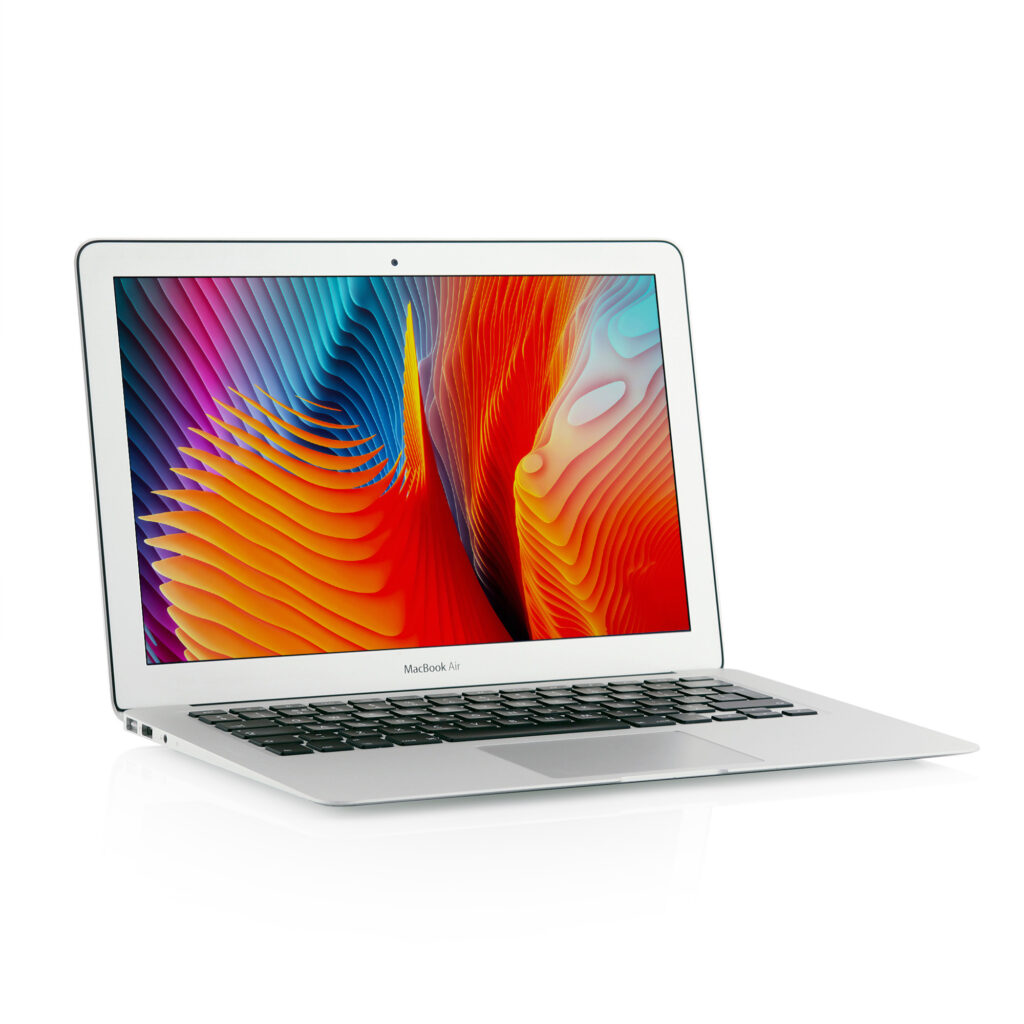
Upgrading a 2011–2017 MacBook Air comes with some limitations due to its design, but there are still several key enhancements you can make:
-
Storage (SSD) Upgrade
You can swap out the internal SSD for a larger, faster model. There are SSDs available that are compatible with these MacBook Air versions. Upgrading the SSD can noticeably boost both storage space and overall speed. -
Memory (RAM)
Unfortunately, the RAM in these MacBook Air models is soldered directly onto the motherboard, making upgrades impossible. -
Battery Replacement
If your battery performance has declined over time, replacing it with a new one can greatly improve the battery life and usability of your MacBook Air, giving it a fresh lease on life. -
Thermal Paste Replacement
Changing the thermal paste on the CPU can enhance heat dissipation, which helps maintain better performance, especially during demanding tasks or prolonged use. -
macOS and Software Updates
Keep your MacBook Air updated with the latest macOS version it can support to ensure maximum security and software compatibility. Depending on the model, you can update it to macOS Monterey, or in some cases, use patched methods to install newer versions. -
External Upgrades
- External Storage: Use external SSDs or HDDs to expand your storage options.
- eGPUs and External Displays: While eGPU support isn’t native to MacBook Airs, you can still connect external monitors to enhance your workspace efficiency.
-
Wi-Fi and Bluetooth Cards
Upgrading the internal Wi-Fi or Bluetooth card can potentially improve your wireless performance and enable support for newer standards, boosting overall connectivity.
What Upgrades can be performed on a 2018-2024 MacBook Air?
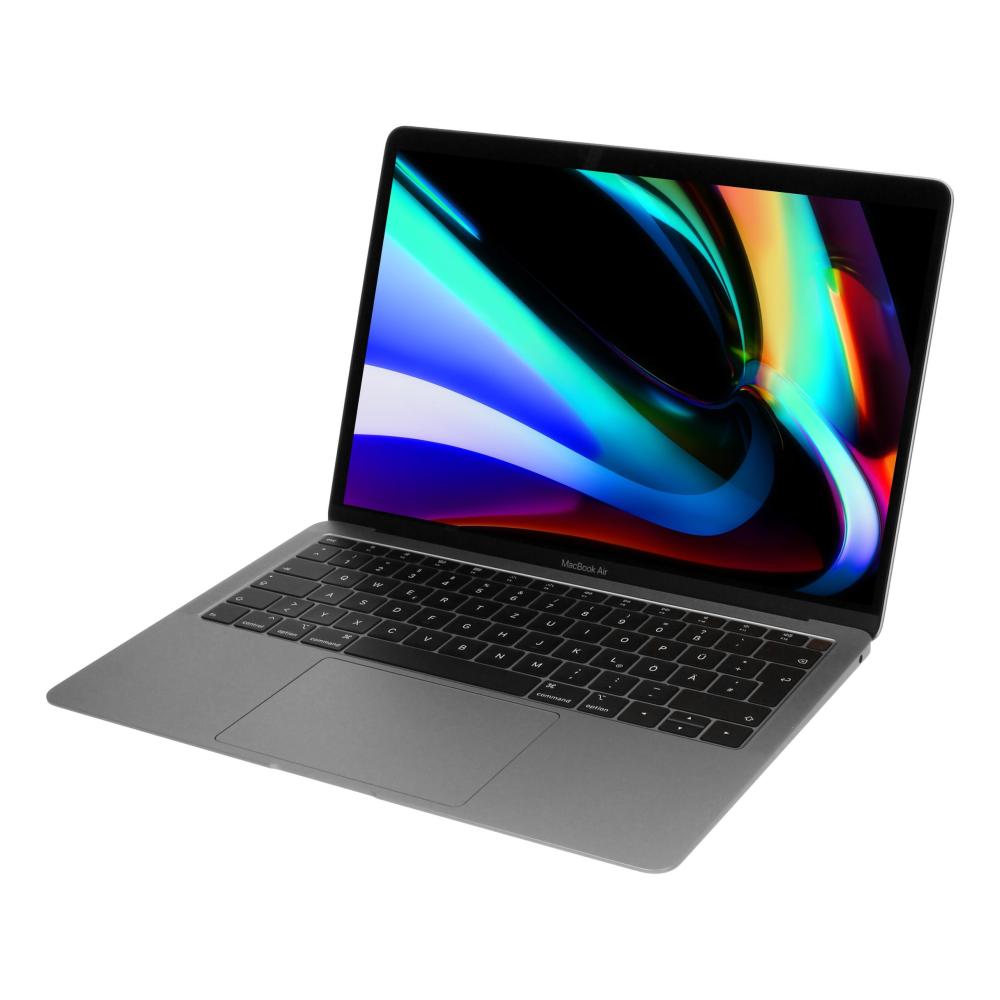
Upgrades on 2018–2024 MacBook Air models are more limited due to Apple’s increased component integration, but there are still several ways to boost the device’s performance and extend its lifespan:
-
Storage (SSD)
- Built-in SSD Upgrades: Unfortunately, the SSD is soldered to the logic board starting with the 2018 MacBook Air, meaning internal storage upgrades are not possible.
- External Storage: You can increase your storage capacity with external SSDs, including Thunderbolt or USB-C drives, which provide fast speeds and convenient portability.
-
Memory (RAM)
Like the SSD, the RAM is also soldered and cannot be upgraded after purchase. It’s essential to select a configuration with adequate RAM (8GB, 16GB, or more) when you first buy the device. -
Battery Replacement
Over time, if the battery performance starts to degrade, you can replace it to restore battery life. Apple and authorized service providers can handle battery replacement for you. -
macOS and Software Updates
Keeping your MacBook Air updated with the latest macOS versions ensures optimal performance, introduces new features, and enhances security. -
External Enhancements
- eGPU (for Intel-based models): Intel-powered MacBook Airs from 2018–2020 support external GPUs via Thunderbolt, offering a boost in graphics performance for demanding tasks.
- Docking Stations: Use USB-C or Thunderbolt docking stations to expand connectivity, adding ports like HDMI, USB-A, Ethernet, and SD card readers.
- External Monitors: Connect external monitors to boost productivity with more screen space.
-
Cleaning and Thermal Paste
Regularly cleaning the internal fans and replacing the thermal paste (for Intel models) can help maintain peak performance and reduce the risk of overheating. -
Accessories
- Protective Cases and Sleeves: Safeguard your MacBook Air from physical damage with a durable case or sleeve.
- Upgraded Chargers or Cables: Consider investing in a higher-wattage or more durable charger and cables for improved reliability.
What Upgrades can be performed on a 2009-2012 MacBook Pro Unibody?
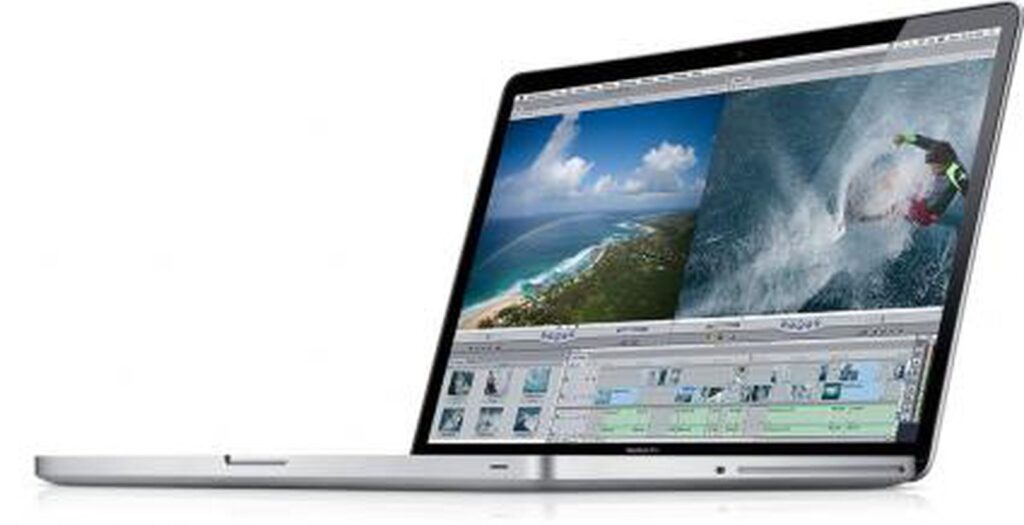
The 2009–2012 MacBook Pro Unibody models offer much greater upgrade potential than modern Macs, enabling substantial improvements in both performance and functionality. Here’s what you can upgrade:
-
Storage (Hard Drive/SSD)
- Hard Drive to SSD Upgrade: Swap the stock hard drive for a SATA SSD to significantly boost boot times, application loading speeds, and overall system responsiveness.
- Larger SSD Upgrade: Upgrade to a higher-capacity SSD for more storage without sacrificing speed.
- Dual-Drive Setup: Replace the optical drive with a second SSD or HDD using a caddy for extra storage and improved flexibility.
-
Memory (RAM)
Most 2009–2012 MacBook Pro models support RAM upgrades:- 2009–2010 models: Up to 8GB.
- 2011–2012 models: Up to 16GB of DDR3 RAM.
Installing more RAM can enhance multitasking and general performance.
-
Battery Replacement
If your battery performance has declined, replacing the internal battery can restore long-lasting usability. -
Optical Drive
Replace the SuperDrive (optical drive) with a secondary SSD or HDD using a caddy to maximize your storage options and improve performance. -
Display
- For certain models, you can swap out the existing display for a higher-quality one, such as a matte or high-resolution option.
- If your current display is damaged, a replacement can restore full functionality.
-
Wi-Fi and Bluetooth
Upgrade the AirPort card to improve wireless connectivity or enable support for newer Wi-Fi standards like 802.11ac for faster internet speeds. -
Cleaning and Thermal Paste
Regularly clean the internal fans and replace the thermal paste on the CPU and GPU to improve cooling and prevent thermal throttling during intensive tasks. -
External Enhancements
- External Monitors: Connect higher-resolution monitors via Mini DisplayPort or adapters to enhance your workspace.
- Docking Stations: Add more ports for modern connectivity options, like HDMI, USB 3.0, and Ethernet.
- External Storage: Use USB or FireWire external drives to expand your storage capacity.
-
macOS and Software
- macOS Updates: Update to the latest macOS version that your Mac supports. Official support typically extends to macOS Catalina (10.15) for the 2012 models.
- Patchers for Newer macOS: Use patchers to install newer, unsupported macOS versions, unlocking additional features and performance improvements.
-
GPU (2011 Models)
If you own a 2011 MacBook Pro with a failing discrete GPU, you can disable it via software or hardware modification to rely solely on integrated graphics, bypassing the issue altogether.
What Upgrades can be performed on a 2013-2015 MacBook Pro Retina?
The 2013–2015 MacBook Pro Retina models offer limited internal upgrade options due to their integrated design, but some key upgrades and enhancements can still be made:
1. Storage (SSD):

- Internal SSD Upgrade:
- The proprietary PCIe SSD can be upgraded for increased storage and speed. Compatible SSDs are available.
- External Storage:
- Use Thunderbolt or USB 3.0 external SSDs or HDDs for additional space.
2. Memory (RAM):
- Non-Upgradable:
- RAM is soldered to the motherboard and cannot be upgraded. Ensure the original configuration (8GB or 16GB) meets your needs.
3. Battery Replacement:
- If the battery life has declined, replace it with a new one to restore full usability. Kits for self-replacement are available, or you can have it replaced by a professional.
4. Thermal Paste Replacement:
- Replacing the thermal paste on the CPU and GPU can improve heat dissipation, ensuring better performance and preventing thermal throttling.
5. Cleaning:
- Clean the fans and internal components to improve airflow and cooling.
6. External Enhancements:
- External Monitors: Connect 4K or higher-resolution displays via HDMI or Thunderbolt 2.
- Docking Stations: Add more ports and modern connectivity options with Thunderbolt docks.
- External GPUs (eGPU): While not officially supported, Intel-based MacBook Pros can sometimes use eGPUs via Thunderbolt 2 for improved graphics performance.
7. macOS and Software Updates:
- Update to the latest macOS version supported (macOS Monterey for 2015 models; macOS Big Sur for 2013-2014 models).
- Use third-party patches to install unsupported macOS versions if needed.
8. Wi-Fi and Bluetooth:
- Upgrade the AirPort card to support faster Wi-Fi standards or Bluetooth improvements if compatible options are available.
9. Accessories:
- Protective Cases and Sleeves: Prevent physical damage.
- Upgraded Chargers and Cables: Use high-quality replacements if needed.
What Upgrades can be performed on a 2016-2017 MacBook Pro?
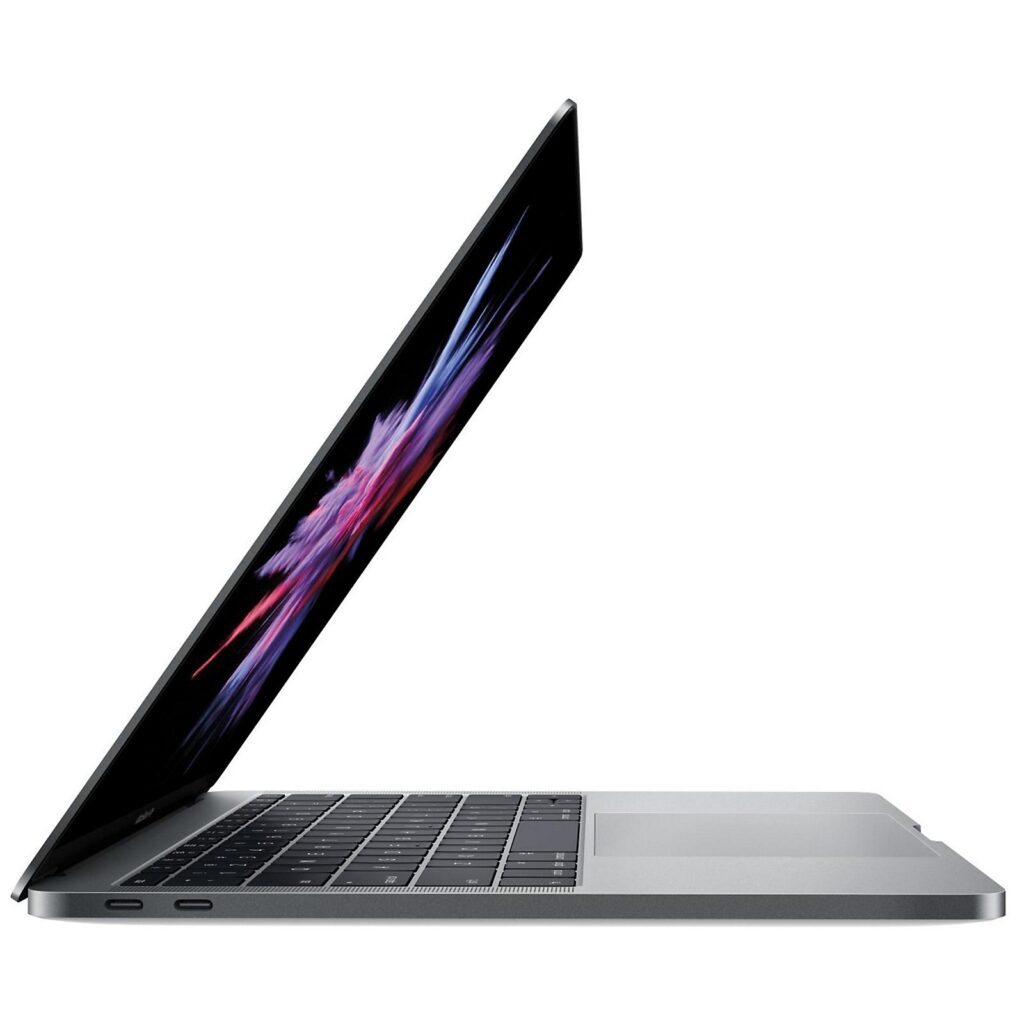
The 2016–2017 MacBook Pro models introduced the Touch Bar and a more integrated design, which limits internal upgrades. However, there are still several ways to improve performance, storage, and overall usability:
-
Storage (SSD)
- Internal SSD:
In Touch Bar models, the SSD is soldered directly to the motherboard, making upgrades impossible.
In non-Touch Bar models, the SSD can be replaced with a compatible, higher-capacity drive. - External Storage:
Expand your storage using Thunderbolt 3 or USB-C external SSDs. NVMe drives in an external enclosure deliver excellent speed and performance.
- Internal SSD:
-
Memory (RAM)
Non-Upgradable:
The RAM is soldered to the motherboard and cannot be upgraded. Be sure to select the right configuration (8GB or 16GB) at the time of purchase to meet your needs. -
Battery Replacement
If battery performance has diminished, replacing the internal battery can help restore longer usage times. This can be done through Apple or an authorized service provider. -
Thermal Paste Replacement
Replacing the thermal paste on the CPU and GPU can enhance heat dissipation, which might help prevent thermal throttling during intense workloads. -
Cleaning and Maintenance
Regularly cleaning the internal fans and vents can improve airflow and cooling efficiency, helping maintain peak performance over time. -
External Enhancements
- eGPU (External GPU):
The Intel-based 2016–2017 MacBook Pros support external GPUs via Thunderbolt 3, providing a significant boost in graphics performance for gaming or demanding professional applications. - External Monitors:
Connect 4K or 5K displays using Thunderbolt 3 or USB-C to HDMI/DisplayPort adapters for a more expansive and high-resolution workspace. - Docking Stations:
Add essential ports like USB-A, SD card readers, HDMI, and Ethernet using USB-C or Thunderbolt docking stations.
- eGPU (External GPU):
-
macOS and Software Updates
Update to the latest macOS version supported (macOS Sonoma as of 2025) to ensure security patches and access to the newest features.
Regularly update your applications to maintain compatibility and improve performance. -
Wi-Fi and Bluetooth Enhancements
Since the internal Wi-Fi and Bluetooth components are not upgradeable, consider using USB-C adapters or dongles to improve connectivity or add support for newer standards. -
Accessories
- Protective Cases and Sleeves:
Protect your MacBook Pro from physical damage with a sturdy case or sleeve. - High-Quality Chargers and Cables:
Replace old or damaged chargers and cables with more durable, higher-quality options to ensure safe and efficient charging.
- Protective Cases and Sleeves:
What Upgrades can be performed on a 2018 or newer MacBook Pro?
Upgrading a 2018 or newer MacBook Pro is somewhat limited due to the design choices made by Apple, particularly in the later models. Here are the typical upgrades that are possible for these models:
1. RAM (Memory)
- For 2018 and newer MacBook Pro models, the RAM is soldered to the motherboard, which means it cannot be upgraded after purchase. So, if you’re considering a MacBook Pro with higher RAM, it must be chosen at the time of purchase.
2. Storage (SSD)
- Depending on the model, some 2018 and newer MacBook Pro models allow for storage upgrades. However, most newer models have soldered SSDs, meaning you cannot upgrade the storage later.
- It’s important to ensure you select the appropriate storage size when purchasing, as upgrading is not feasible for most of these devices.
3. Battery
- The battery can be replaced if it starts to degrade, but it’s not user-upgradable. Apple or authorized repair providers can replace the battery, though it’s often not an upgrade in terms of capacity, just a replacement.
4. Keyboard (Key Switch Mechanism)
- The keyboard on the 2018 MacBook Pro models featured the butterfly switch, which had reliability issues, and Apple moved to a more reliable scissor-switch mechanism starting in 2019. While you can’t upgrade this yourself, Denver Mac Repair can replace the keys or keyboard assembly.
5. Thermal Paste (for improved cooling)
- In theory, the thermal paste could be replaced to improve cooling efficiency, though this is an advanced modification that could void warranties and is not typically performed by regular users.
6. External Upgrades
- External SSDs or Hard Drives: If you need more storage, you can always use external drives via Thunderbolt or USB-C ports.
- External GPU (eGPU): If you need enhanced graphics power, some 2018 and newer MacBook Pro models support external GPUs through Thunderbolt 3/USB-C ports. This can be an upgrade for heavy graphics or gaming tasks.
7. Display Replacement (if damaged)
- While you can’t upgrade the display in terms of resolution or size, screen replacements can be done by Apple or certified technicians if the screen is damaged.
8. Upgraded Accessories
- Accessories like docks, external monitors, keyboards, and mice can provide better performance and usability depending on your needs.
Most upgrades on newer MacBook Pro models are limited to accessories or external modifications, as internal parts are not easily modifiable due to Apple’s increasingly compact and integrated designs.
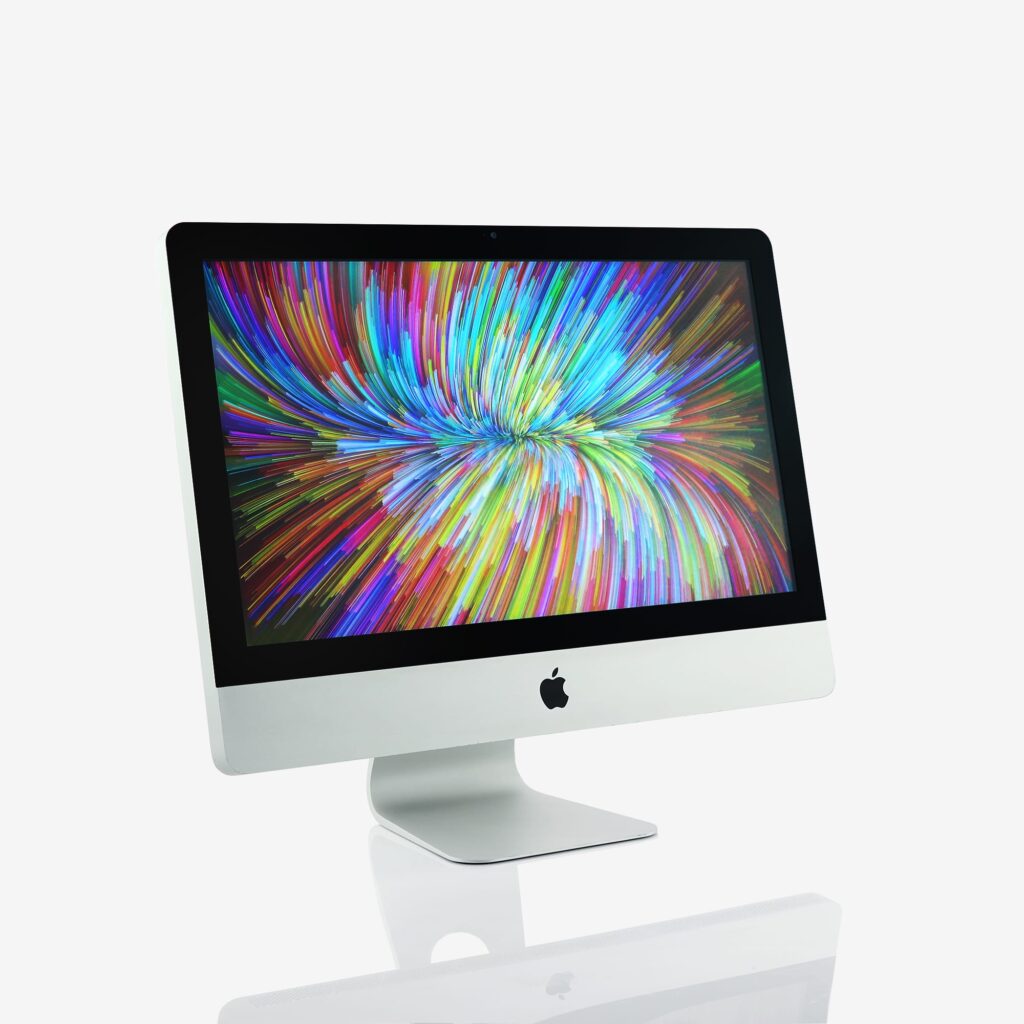
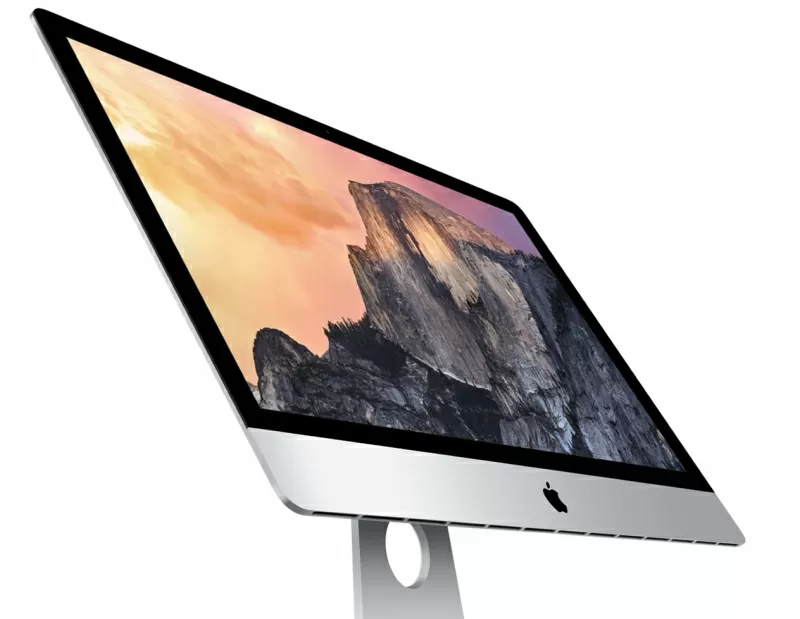
What Upgrades can be performed on Intel iMacs?
What Upgrades can be performed on Apple Silicon iMacs?
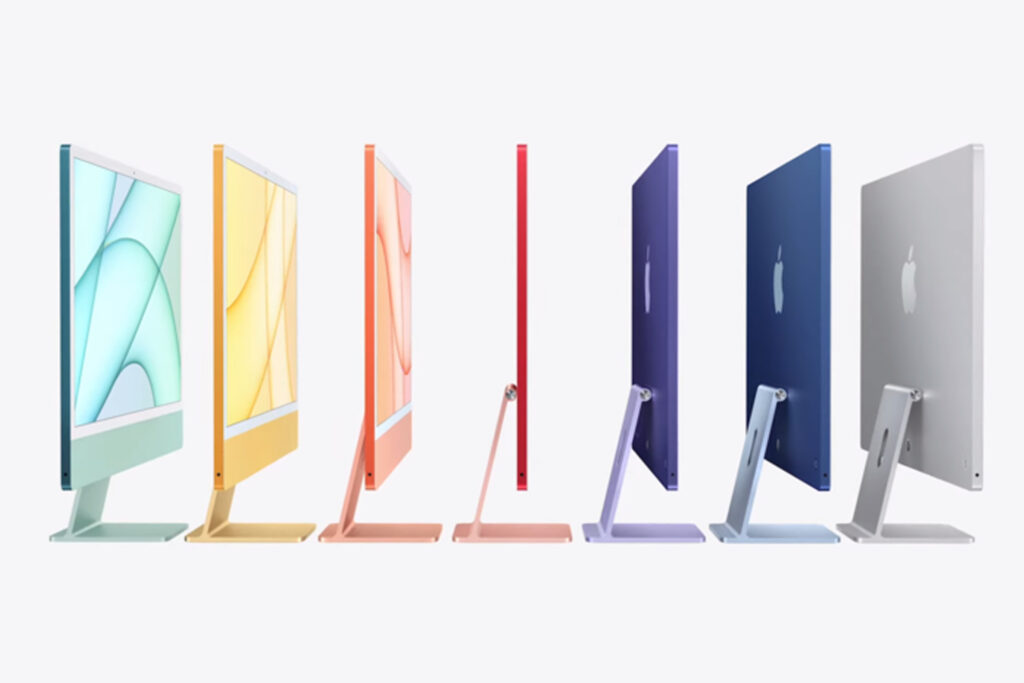
Apple Silicon iMacs, like the 24-inch iMac with the M1 chip released in 2021, come with a more integrated design that limits the types of upgrades you can make compared to Intel-based models. With the transition to Apple Silicon, Apple introduced several changes that restrict internal upgradeability. Here’s an overview of what you can and cannot upgrade on these iMacs:
1. RAM (Memory)
- Non-Upgradeable: In Apple Silicon iMacs, the RAM is soldered directly to the chip and cannot be upgraded after purchase. This marks a departure from Intel-based iMacs, where RAM could often be upgraded in certain models. You’ll need to select the RAM amount (typically 8GB, 16GB, or 32GB) at the time of purchase.
2. Storage (SSD)
- Non-Upgradeable: Like the RAM, the SSD storage is also soldered onto the logic board, making upgrades impossible after purchase. You must decide on your storage capacity (256GB, 512GB, 1TB, or 2TB) when you first buy the iMac.
3. Graphics (GPU)
- Integrated GPU: The Apple Silicon chips, such as the M1, integrate both the CPU and GPU into a single silicon package. This means the GPU is fixed and cannot be upgraded or replaced. The graphics performance is tied directly to the capabilities of the Apple Silicon chip.
- No eGPU Support: Unlike Intel-based iMacs, Apple Silicon iMacs do not support external GPUs (eGPUs), making it impossible to upgrade the graphics performance via external solutions.
4. Processor (CPU)
- Non-Upgradeable: The CPU is embedded within the Apple Silicon chip (e.g., M1 or M1 Pro/Max in higher-end models). Since the CPU is integrated into the same chip as the GPU and RAM, it is not possible to upgrade or replace the processor after purchase.
5. Battery (for 24-inch iMac with Built-in Battery)
- Replaceable: The 24-inch Apple Silicon iMac has a built-in battery designed for power backup. While the battery is not meant for upgrades, it can be replaced if it starts to degrade. This replacement would typically need to be done by Apple or an authorized service provider.
6. Ports and Connectivity
- Non-Upgradeable: The number and type of ports (such as USB-C, Thunderbolt) are fixed and cannot be upgraded by the user. If you need additional ports, you’ll need to use external hubs or docking stations to expand connectivity options.
7. Display
- Non-Upgradeable: The display is an integral part of the iMac’s design and cannot be upgraded in terms of resolution, size, or display technology. However, if the display becomes damaged, it can be replaced, though it cannot be swapped out for a different model or resolution.
8. Cooling System (Fans, Thermal Paste)
- Non-Upgradeable: Apple Silicon chips are designed to be more power-efficient and generate less heat compared to Intel processors, meaning the cooling system is optimized for these chips. While theoretically, the thermal paste could be replaced, this would require a full teardown and is not typically a DIY task. Such an operation could also void your warranty.
9. External Upgrades
- External Storage: Since the internal storage is non-upgradable, you can add external storage via Thunderbolt or USB-C. External SSDs are an excellent way to expand your storage capacity without needing to open up the iMac.
- External Monitors: Apple Silicon iMacs can support up to one or two external displays (depending on the model). You can enhance your workspace by connecting additional monitors for more screen real estate.
- External Peripherals: Upgrading peripherals like keyboards, mice, speakers, and other accessories is always possible. These can help personalize and enhance your iMac experience.
10. Other Internal Components
- Non-Upgradeable: Many internal components, such as the Wi-Fi and Bluetooth modules, are soldered into the logic board. If these components malfunction, they must be repaired or replaced by Apple or an authorized service provider.
Key Considerations
- Future-Proofing: Since RAM and storage are non-upgradable, it’s important to choose configurations that will meet your needs for the lifespan of the iMac. Consider selecting the maximum RAM and storage that you anticipate needing, as these cannot be upgraded later.
- External Solutions: For upgrades such as additional storage, enhanced graphics, or additional displays, external solutions like external SSDs and monitors are the best alternatives for Apple Silicon iMacs.
- Planning Ahead: Given the lack of upgrade options for internal components, it’s crucial to make careful decisions when purchasing your Apple Silicon iMac to ensure it will serve your needs in the long term.
Apple Silicon iMacs are designed to be more integrated, energy-efficient, and streamlined, meaning the ability to upgrade components like RAM, storage, and GPU is severely limited compared to Intel-based models. External upgrades such as additional storage, peripherals, and external monitors are your best options for improving performance or expanding functionality. As a result, it’s essential to choose the right configuration at the time of purchase, as future upgrades will mostly rely on external solutions.
What Upgrades can be performed on Intel Mac minis?
Upgrades you can perform on Intel-based Mac minis depend on the specific model, as Apple has designed some components to be more upgradable than others. Here’s a breakdown of the general upgrades that are possible:
1. RAM (Memory)

- Upgradable: On Intel-based Mac mini models (excluding 2014), the RAM is upgradeable. However, it’s important to note that some models (2014) have soldered RAM, which cannot be upgraded later. For other Intel models, you can replace or upgrade the RAM yourself, but this requires removing the bottom cover and possibly other components.
- Upgrade Limit: Depending on the model, you can go up to 64GB in some configurations, but check the specific model for maximum supported RAM.
2. Storage (SSD)
- Upgradable: For Intel-based Mac mini models (excluding 2018), the SSD is replaceable, but it can be quite challenging as it may involve disassembling parts of the Mac mini, which may void warranties. Most models with non-soldered storage can be upgraded, though you may need special tools.
- Upgrade Limit: Some Intel models support up to 2TB or 4TB, depending on the model year and configuration.
3. Wi-Fi and Bluetooth Cards

- Upgradable: The Wi-Fi and Bluetooth cards in some Intel Mac mini models can be swapped out for newer ones. This can provide faster wireless speeds if needed, although it’s less common for users to need this upgrade.
4. Graphics (GPU)
- Not Upgradable: The GPU in Intel Mac mini models is integrated into the motherboard and is not user-upgradable. If you need better graphics performance, you would need to consider external solutions, such as using an eGPU (external GPU), provided your Mac mini supports Thunderbolt 3 or later.
5. CPU (Processor)
- Not Upgradable: The CPU in Intel Mac mini models is soldered to the motherboard and cannot be replaced or upgraded. If you require more processing power, you’ll need to purchase a new machine.
6. External Ports/Adapters
- Upgradeable via accessories: You can add additional USB ports, HDMI outputs, or other connectivity options via Thunderbolt, USB, or other external adapters. These are not internal upgrades, but they can expand the functionality of your Mac mini.
7. Cooling and Fan Replacement
- Upgradable/Replaceable: If you are experiencing overheating issues or want to improve cooling performance, you can replace or upgrade the cooling fan in some Intel Mac mini models, though this is not a common upgrade for most users.
8. Battery (in specific models)
- Replaceable: If you’re using a Mac mini that has a built-in battery for backup power (such as the logic board battery), it can be replaced, but it doesn’t impact overall performance.
Considerations:
- Warranty: If your Mac mini is still under warranty, upgrading components yourself could void it, especially if it involves removing components or replacing internal parts. It’s always good to check with Apple support if in doubt.
- Tools: Performing upgrades, especially for things like RAM and storage, can require specific tools. Make sure you have the necessary equipment, like screwdrivers and anti-static wristbands, to avoid damaging the components.
Always refer to the specific model and year of your Mac mini when considering upgrades to ensure compatibility.
What Upgrades can be performed on Apple Silicon Mac minis?
Apple Silicon Mac minis, including the M1, M2, and the more upgradeable M4 model, offer fewer internal upgrade options compared to older Intel-based models. Here’s a look at the areas where you can or cannot upgrade:
1. RAM (Memory)
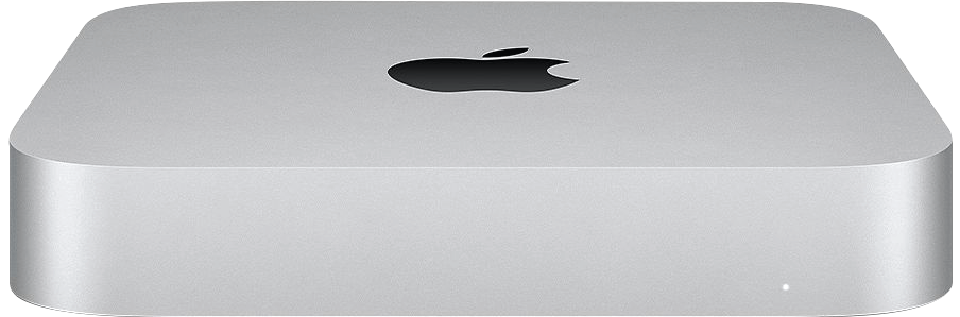
- Non-upgradable: The RAM in Apple Silicon Mac minis (M1, M2, and M4 models) is soldered directly to the logic board, making it impossible to upgrade after purchase. Be sure to choose the right amount of memory (typically 8GB, 16GB, or 32GB) when buying, as it cannot be changed later.
2. Storage (SSD)
- Non-upgradable: Like RAM, the SSD storage in the M1 and M2 Mac minis is soldered to the logic board, meaning you can’t upgrade it after the fact. To avoid running into storage limitations later on, select a higher capacity model when purchasing (ranging from 256GB to 2TB or more).
- Upgradable (M4 Model): The M4 Mac mini offers more flexibility, with the ability to replace and upgrade storage, offering various capacity options to suit your needs. This provides more future-proofing options compared to the earlier M1 and M2 models.
3. External Storage
- Available: Since internal storage cannot be upgraded in the M1 and M2 models, using external storage is an excellent alternative. External SSDs connected via USB-C or Thunderbolt can provide fast data access, with Thunderbolt 4 drives offering speeds comparable to internal storage. This is a great way to increase your storage capacity without replacing the internal drive.
4. Ports
- Fixed: The number and type of ports (USB-C, USB-A, HDMI, etc.) are fixed in the Apple Silicon Mac mini, meaning you can’t add more or replace them. However, you can expand your connectivity options using external hubs or docking stations, which can provide additional ports like USB-A, Ethernet, SD card readers, and more.
5. Cooling (External Solutions)
- External Solutions: The Mac mini’s internal cooling system is fixed and cannot be upgraded. However, if you’re running high-performance tasks and want to improve thermal management, you can use external cooling pads or fans to help reduce temperatures and prevent thermal throttling.
6. Wi-Fi/Bluetooth
- Non-upgradable: Wi-Fi and Bluetooth are integrated into the logic board and cannot be upgraded in Apple Silicon Mac minis. However, you can use external adapters if you need additional network options, such as adding a wired Ethernet connection or improving Wi-Fi support with a USB dongle.
In Summary:
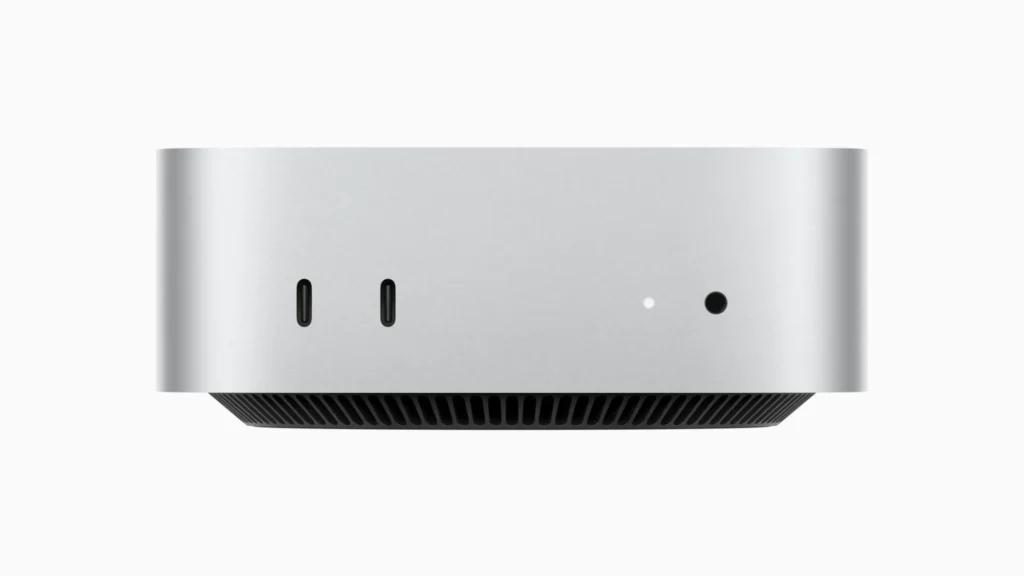
The upgrade options for Apple Silicon Mac minis are fairly limited when it comes to internal components. While RAM and storage are non-upgradable in M1 and M2 models, the newer M4 model offers some flexibility with storage upgrades. For additional functionality, you can use external solutions like storage drives, hubs, and cooling pads. Given the limitations, it’s essential to plan your configuration carefully at the time of purchase to ensure it meets your needs for the long term.
What Upgrades can be performed on Mac Studio?
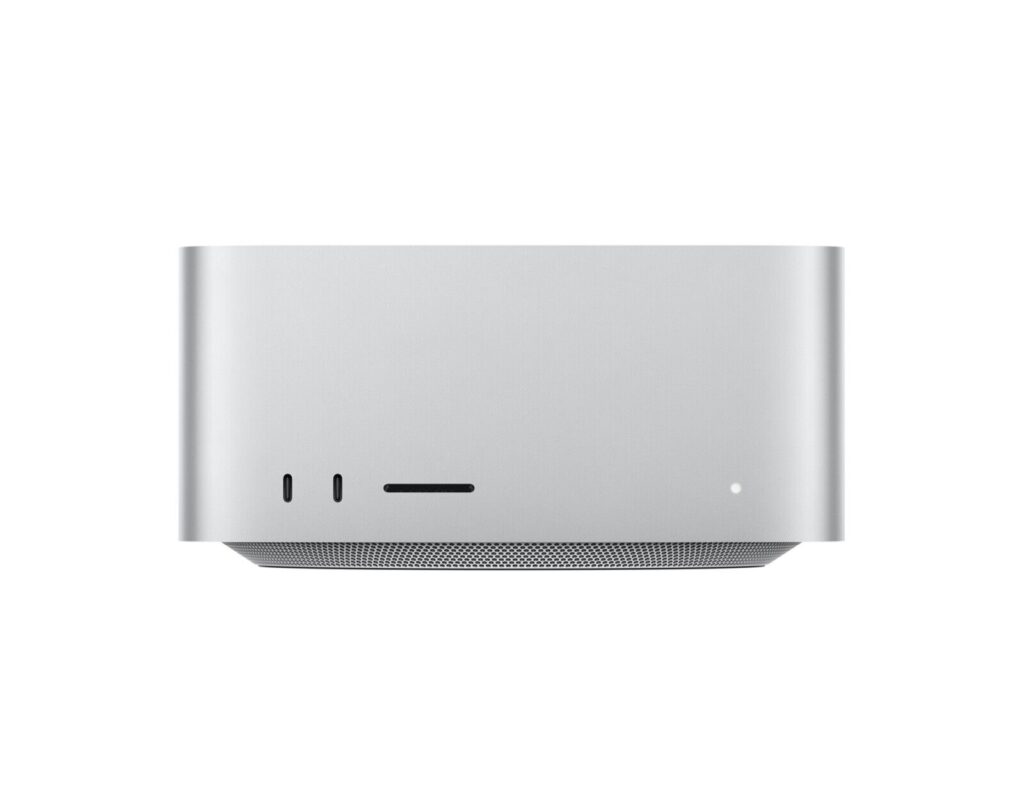
The Mac Studio provides a range of upgrade options, although many of them are limited due to its integrated Apple Silicon design. Below are the primary upgrade possibilities and considerations:
1. RAM (Memory)
- Non-upgradable: The Mac Studio, powered by the M1 Max or M1 Ultra chips, features unified memory that is directly integrated into the processor. As a result, the RAM is not upgradeable after purchase. You must choose the appropriate amount of memory (up to 128GB, depending on the chip) when purchasing the device, as it cannot be changed later.
2. Storage (SSD)
- Upgradable: While the M1 Max and M1 Ultra chips feature soldered SSD storage, Denver Mac Repair now offers the ability to replace and upgrade the storage in the Mac Studio. This provides flexibility to expand your storage capacity, with various sizes available to suit your needs.
3. External Peripherals and Accessories
While the internal components of the Mac Studio have limited upgradeability, there are many ways to enhance its functionality externally:
- External SSDs or Hard Drives: Increase storage capacity with high-speed external drives, such as Thunderbolt or USB-C SSDs.
- Monitors: The Mac Studio supports multiple external displays, so you can upgrade your workspace with additional monitors or higher resolution displays.
- Keyboard and Mouse/Trackpad: Select from a variety of input devices from different brands to tailor your experience.
- Docking Stations: Add more connectivity options, such as extra USB-A, HDMI, SD card slots, or Ethernet ports with a Thunderbolt docking station.
- Audio Interfaces and Speakers: Upgrade your audio setup with external interfaces, microphones, or enhanced speaker systems for better sound quality.
4. Graphics (GPU)
- Non-upgradable: The Mac Studio’s GPU is embedded within the M1 Max or M1 Ultra chip, so it’s not possible to upgrade or replace the graphics card. If you require more GPU power, you must choose the appropriate chip configuration (M1 Max or M1 Ultra) during purchase.
5. Networking
- External Enhancements: While the Mac Studio comes with built-in Wi-Fi and Ethernet, you can improve your networking capabilities by using external adapters or upgrading to a more powerful router. However, the internal networking hardware itself cannot be replaced.
6. Third-Party Upgrades
- External GPUs (eGPUs): Although the Mac Studio does not officially support external GPUs with Apple Silicon (M1, M1 Pro, M1 Max, or M1 Ultra), some third-party users have managed to use Thunderbolt eGPU enclosureswith Intel-based Macs. Compatibility with M1/M2 chips, however, is limited and may require workarounds.
Key Considerations
While the Mac Studio is designed as a high-performance machine, its internal upgrade options are limited due to Apple’s integrated design. Therefore, choosing the right specifications—particularly RAM and storage—at the time of purchase is essential to future-proof the device for your needs. However, external peripherals, such as storage drives, monitors, and docking stations, can significantly enhance its functionality, making it versatile for different workflows.
If you need higher GPU power, selecting a higher-end configuration (such as the M1 Ultra) is your best option, as upgrades in that area aren’t available post-purchase.
What Upgrades can be performed on an Intel Mac Pro Tower or Cylinder?
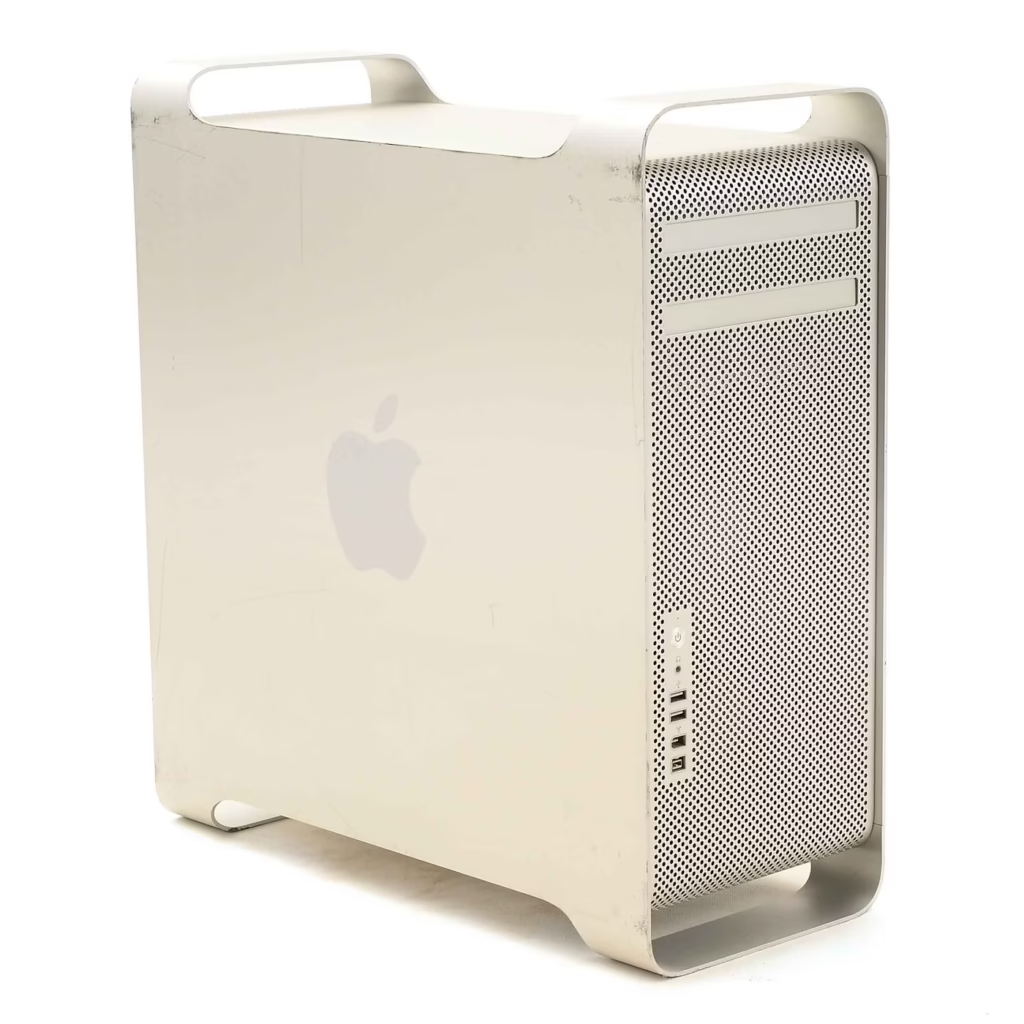
Upgrades for Intel Mac Pro Tower (2013 onwards)
The Intel Mac Pro Tower is a modular desktop that is far more upgrade-friendly than the Mac Pro Cylinder. Here’s a breakdown of the upgrade possibilities for the Mac Pro Tower (2013 onwards):
1. RAM (Memory)
- Upgradeable: The Mac Pro Tower supports DDR4 ECC (Error Correcting Code) memory.
- Maximum Capacity: Up to 1.5TB of RAM (depending on the configuration).
- Upgrade Path: You can easily swap or upgrade the memory modules, either through Apple or third-party providers. It’s advisable to use ECC RAM for stability, especially in professional workloads like video editing, scientific computing, or other memory-intensive tasks.
- Custom Configurations: You can upgrade from as little as 32GB of RAM and expand as needed.
2. Storage (SSD)
- Upgradeable: The Mac Pro Tower uses PCIe-based NVMe SSDs.
- Initial Configuration: Apple offers up to 8TB of internal storage (depending on the configuration).
- Upgrade Path: You can replace or upgrade the SSDs. While Apple offers proprietary SSD options, third-party NVMe SSDs can be used if you’re looking for more cost-effective storage options or higher capacities.
- Storage Expansion: Consider using additional PCIe cards for even more internal storage or opting for external storage solutions if you need more flexibility.
3. Graphics (GPU)
- Upgradeable: The Mac Pro Tower has two PCIe slots for graphics cards.
- Upgrade Path: You can replace or upgrade the GPUs. For instance, upgrading to AMD Radeon Pro Vega II or AMD Radeon Pro W5700X will improve graphical performance for video editing, 3D rendering, and other GPU-intensive tasks.
- Third-Party Options: Other compatible AMD graphics cards can be installed if you require different types of GPUs based on your professional needs.
- Dual GPU Configurations: You can install dual graphics cards, which can be especially beneficial for high-end workflows like professional video rendering and multi-stream editing.
4. PCIe Expansion Cards
- Upgradeable: The Mac Pro Tower offers multiple PCIe slots that allow you to add or upgrade various expansion cards.
- Expansion Path:
- Storage Controllers: You can add RAID cards for increased storage performance and redundancy.
- Networking Cards: For faster networking speeds, you can add 10Gb Ethernet or higher-speed network cards.
- Audio/Video I/O Cards: Professional-grade audio or video interfaces can be added for improved I/O capabilities in video production or audio engineering.
- Other Custom Cards: Cards for specialized hardware tasks, like capture cards or scientific instrumentation, can be installed.
5. Aftermarket Upgrades
- Cooling: You can install aftermarket cooling systems, including better fans or liquid cooling setups, if needed to reduce thermal output during heavy workloads.
- Storage Expansion: Additional PCIe SSDs or RAID cards can be added for more storage capacity or performance.
- Specialized Hardware: Custom cards or specialized hardware for professional use can also be installed, making the Mac Pro Tower suitable for a wide variety of tasks from media production to scientific computing.
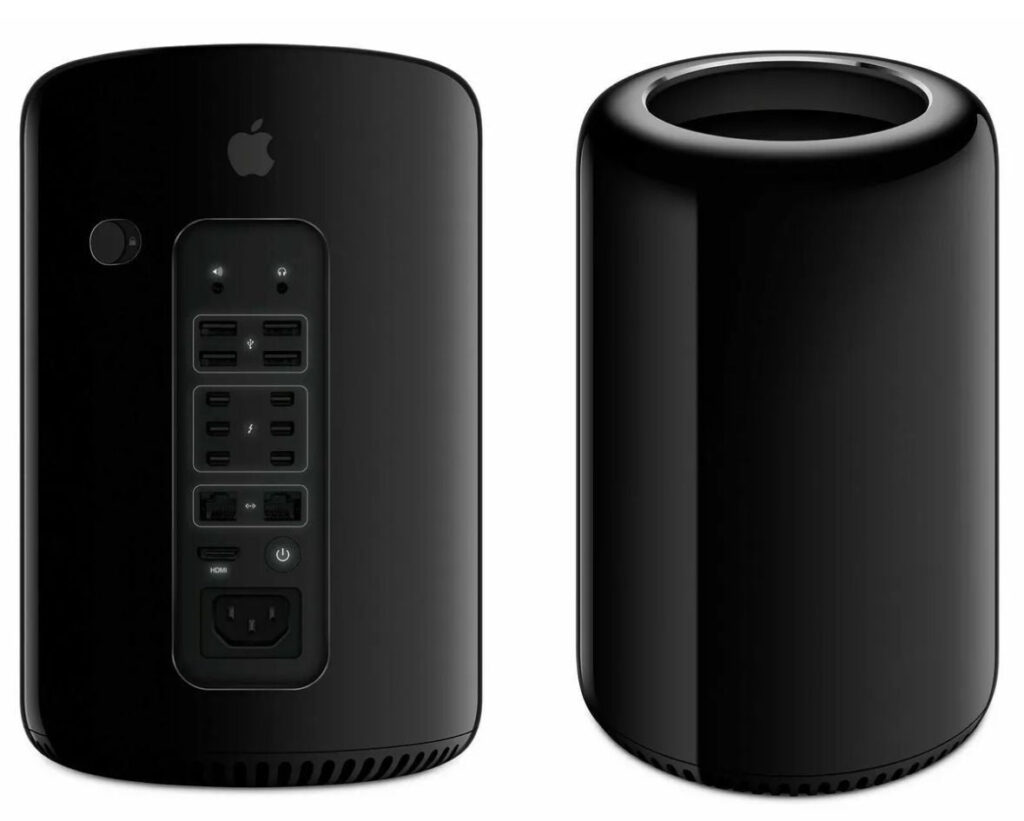
Upgrades for Mac Pro Cylinder (2013)
The Mac Pro Cylinder (2013) is much more compact and has fewer upgrade options than the Tower model due to its integrated design. Below are the main upgrades you can perform on the Mac Pro Cylinder:
1. RAM (Memory)
- Upgradeable: The Mac Pro Cylinder supports up to 64GB of ECC DDR3 RAM.
- Upgrade Path: You can replace the existing RAM modules with higher-capacity ones, as long as you stay within the 64GB limit.
- Custom Upgrades: Apple uses non-user-replaceable RAM for many configurations, but some users have successfully upgraded their RAM. However, this may require professional assistance and could void warranties.
2. Storage (SSD)
- Upgradeable: The Mac Pro Cylinder uses proprietary PCIe SSD solutions. While it comes with up to 1TB or 2TB SSD options, some users have managed to upgrade the SSD with compatible third-party solutions.
- Upgrade Path: While this can be tricky and may void warranties, upgrading to a larger or faster third-party PCIe SSD can be an option. Make sure to check for compatibility before attempting any upgrades.
- Limited Expansion: The Mac Pro Cylinder has limited space for internal storage upgrades compared to the Tower model.
3. GPU (Graphics)
- Non-upgradable: The GPU in the Mac Pro Cylinder is built into the system and cannot be easily replaced.
- Original Configuration: The Mac Pro Cylinder features dual AMD FirePro D300, D500, or D700 GPUs. However, you are limited to the configurations Apple provided at the time of purchase, and there is no way to upgrade the GPU after buying the machine.
4. Aftermarket Options
- Limited PCIe Expansion: Unlike the Tower model, the Mac Pro Cylinder does not offer expansion slots for PCIe cards.
- External Devices via Thunderbolt: While internal expansion is limited, you can use Thunderbolt 2 ports to attach external devices such as eGPUs, additional storage, or other peripherals. However, the eGPU support is not as robust as in the Intel Mac Pro Tower.
- External Storage: For more storage capacity, you can use external Thunderbolt-based SSDs or hard drives to expand your available space.
Summary
- Mac Pro Tower (2013 onwards): Offers extensive upgradeability, including RAM (up to 1.5TB), storage, GPU (with dual PCIe slots), and PCIe expansion cards. Ideal for users who need high performance and customization for specific tasks.
- Mac Pro Cylinder (2013): Has more limitations, particularly with GPU upgrades (non-upgradable) and PCIe expansion (very limited). However, users can still upgrade RAM (up to 64GB) and storage (with third-party PCIe SSDs), as well as add external peripherals via Thunderbolt.
For users looking for long-term upgradeability and flexibility, the Mac Pro Tower is the better option. The Mac Pro Cylinder is more compact but limits expansion, making it better suited for those who prioritize space efficiency and don’t require extensive internal upgrades.
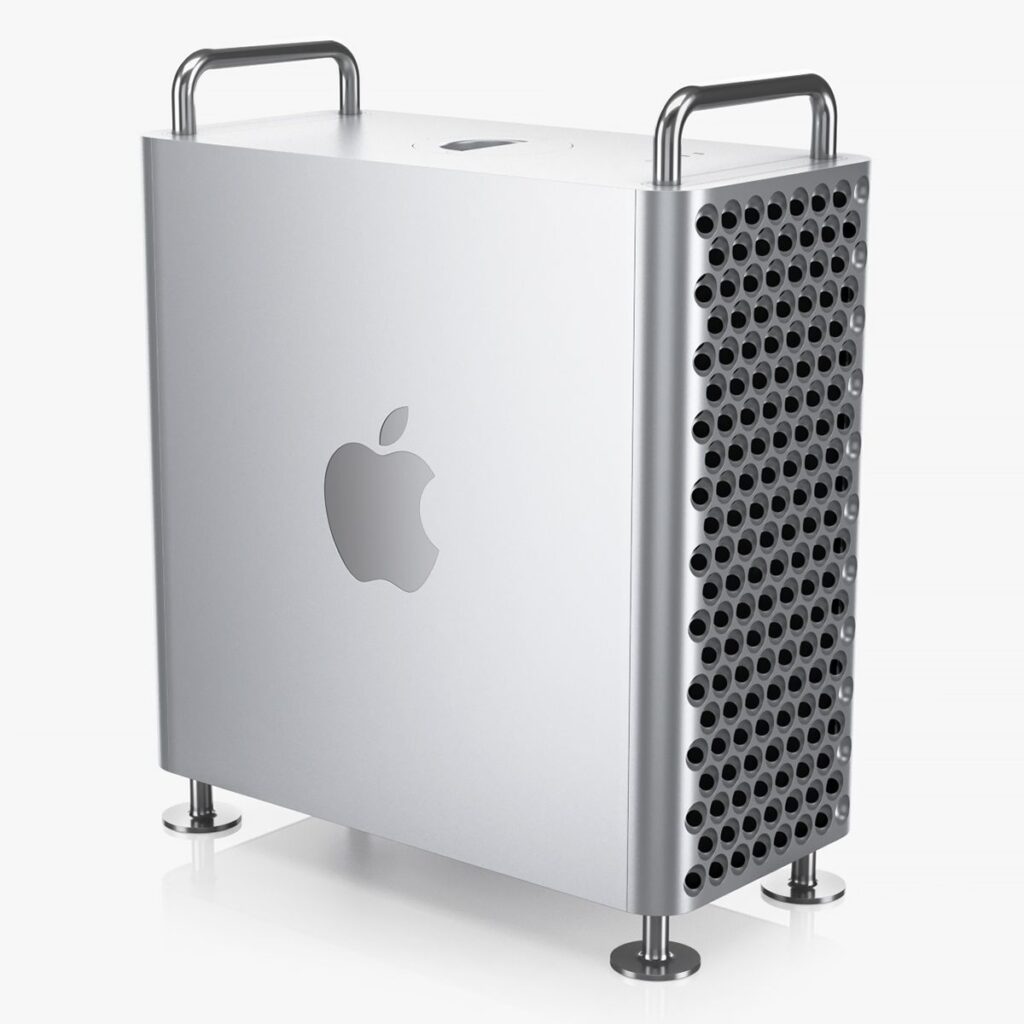
What Upgrades can be performed on an Apple Silicon Mac Pro Tower?
The Apple Silicon Mac Pro (M2 Ultra) represents a more powerful and flexible system than earlier models, but it’s still less modular compared to traditional desktop PCs. While you can upgrade storage, expand with PCIe cards, and use external cooling solutions, you need to make thoughtful decisions at the time of purchase since RAM and GPU are largely fixed.
Why does Apple integrate components such as SSD and RAM in to the logic board?
Apple’s decision to integrate components like SSDs and RAM directly into the logic board is a key design strategy that impacts performance, efficiency, and aesthetics. Here’s an expanded breakdown of the reasons behind this choice, as well as the trade-offs involved:
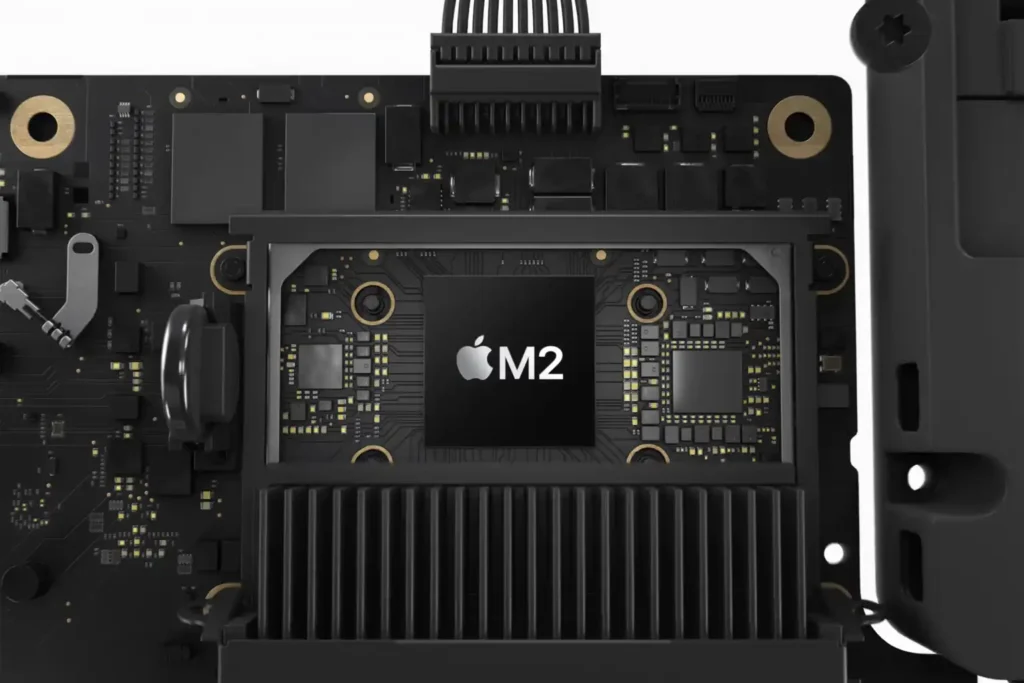
Reasons for Integration:
1. Space Efficiency
- Slimmer, More Compact Designs: By integrating components like RAM and SSD into the logic board, Apple can save significant space, which is crucial for products like MacBooks, iPads, and iPhones that emphasize thin and light form factors. These smaller designs are more portable and can house other essential components, such as larger batteries or higher-resolution displays, within the limited space available.
- Streamlined Internal Architecture: Integration reduces the need for separate components with additional connectors or cables, leading to a more compact and efficient internal layout. This also enhances ease of manufacturing and assembly.
2. Performance Optimization
- Faster Data Transfer Speeds: Integrated components can directly connect to the CPU and GPU on the same board, reducing the time it takes for data to travel between components. This results in lower latency and faster performance, especially in tasks like app launching, file access, and multitasking.
- Unified Memory Architecture (UMA): For Apple Silicon Macs, unified memory means that RAM and GPU memory are shared, allowing for faster and more efficient memory use across the system, especially in graphics-intensive tasks like video editing or gaming. It can also improve overall system responsiveness by eliminating the bottleneck of transferring data between discrete RAM and the GPU.
3. Power Efficiency
- Lower Power Consumption: Integrated components can be optimized for power efficiency because they are designed to work together within a smaller footprint. This reduces the need for additional power-hungry circuits or connectors.
- Extended Battery Life: For portable devices, such as MacBooks or iPads, power efficiency is crucial. By minimizing energy loss through components and improving power management, devices can last longer on a single charge.
- Thermal Optimization: Integrated components help with heat dissipation, making it easier to maintain efficient thermal performance, which is especially important in battery-powered devices.
4. Thermal Management
- Optimized Cooling: Integrated components, being physically closer to each other and the CPU, make it easier to design better thermal solutions. The heat generated by these components can be more effectively distributed and managed, preventing hotspots and improving the overall thermal performance.
- Efficient Heat Distribution: Integration means fewer separate parts, so the system can distribute heat more evenly, reducing the likelihood of thermal throttling—where the system slows down to avoid overheating.
5. Design Aesthetics and Build Quality
- Cleaner, More Refined Designs: Apple has always prioritized design, and integration of key components contributes to sleek and minimalistic aesthetics. Fewer connectors and cables mean a more streamlined and visually appealing internal architecture, which translates into cleaner device exteriors and better overall build quality.
- More Elegant User Experience: Integration contributes to a more seamless user experience since users don’t have to worry about upgrading or managing separate components.
6. Cost and Supply Chain Control
- Reduced Complexity: By integrating components like RAM and SSD into the logic board, Apple can reduce its dependency on multiple third-party suppliers. This gives them more control over the manufacturing process, and it can potentially reduce costs by streamlining production.
- Quality Control: Direct integration enables Apple to ensure that the components meet their high standards and specifications. This level of integration also gives them greater control over component quality, ensuring they match the performance and durability expectations of Apple products.
- Reduced Component Failures: Fewer individual components reduce the chances of failure due to external factors like loose connections or faulty cables.
Downsides of Integration:
1. Limited Upgradeability
- No Upgrades: The most significant downside is that RAM and SSD cannot be upgraded after purchase. Users cannot add more memory or swap out a smaller SSD for a larger one once they’ve chosen their configuration. This can be frustrating for users who want the flexibility to upgrade their devices as their needs evolve.
- Fixed Configuration: With non-upgradable memory and storage, users are forced to plan for their long-term needs when purchasing. A system with 8GB of RAM or 256GB of storage may be sufficient initially, but if you find you need more later, you must either live with the limitations or buy a new device entirely.
2. Higher Initial Cost
- Premium Pricing: Due to the integration of advanced components, such as unified memory or custom SSDs, devices can have a higher initial cost. While this results in better performance and efficiency, the upfront cost may be prohibitive for some users, especially when considering the inability to upgrade in the future.
3. Repair and Maintenance Challenges
- Difficult to Repair: Since the RAM and SSD are soldered directly to the logic board, if one of these components fails, it’s often more difficult and expensive to repair. Instead of just replacing a faulty part, the entire logic board may need to be replaced.
- Costly Repairs: Out-of-warranty repairs for devices with integrated components can be costly, and users may find themselves needing to replace the entire logic board rather than just the failed part. This is less flexible than traditional desktops or laptops where individual components could be swapped out more easily.
4. Potential for Limited Lifespan
- Aging Components: With integrated components, once your system’s RAM or storage becomes outdated or no longer meets your needs, there’s no simple way to refresh or upgrade those parts. As a result, the device may feel obsolete sooner than modular systems, where components like RAM, storage, or even the CPU can be replaced.
Apple’s integration of components like RAM and SSD into the logic board offers numerous advantages, particularly in terms of performance, efficiency, and design. Space-saving, power optimization, and thermal management are all enhanced, contributing to the sleek and high-performing Apple ecosystem. However, the trade-off is that this integration limits upgradeability and repairability, which may make long-term device ownership more challenging. It’s essential for users to carefully consider their future needs when purchasing Apple devices, as these components can’t be upgraded later.
Is there an option to upgrade integrated components?
Logic Board Replacement
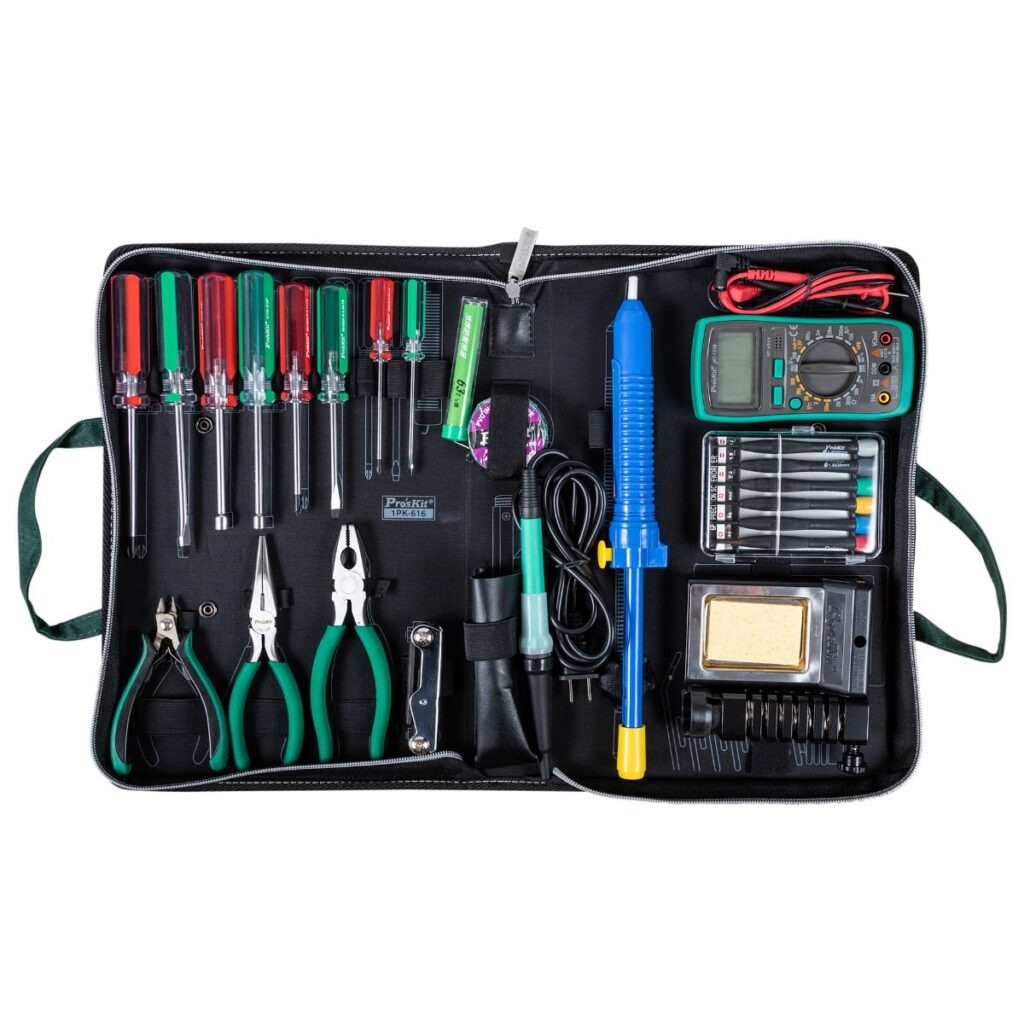
In many cases, logic board replacement is one potential upgrade option for Macs, especially when you’re looking to boost your RAM and SSD specifications. However, whether this is a good option depends on your specific model, the age of the Mac, and the cost involved. Here’s a more detailed breakdown:
When Logic Board Replacement is a Good Option:
-
Higher RAM or SSD Capacity: If your Mac’s internal RAM or storage is not meeting your needs, upgrading to a larger or faster logic board with more RAM or SSD capacity could provide a substantial performance boost.
-
Longevity: Replacing the entire logic board with one that supports greater specs can extend the life of your device, especially if it’s a high-end Mac like a MacBook Pro or iMac that’s still relatively new but is lacking in certain specifications.
-
Better Performance: If you’re working with demanding applications (e.g., video editing, 3D rendering, or heavy multitasking), upgrading the logic board can drastically improve performance, especially if you opt for one with a more powerful CPU or GPU (if available for your model).
When Logic Board Replacement May Be Cost-Prohibitive:
-
Older Models: For Macs that are several years old, upgrading the logic board can be costly, especially since the cost of the replacement board and labor can approach the price of a new Mac.
- Older machines may not support newer technologies, so the replacement board might not provide as much of a performance gain.
-
Soldered RAM and SSD: Many Apple Silicon Macs and newer models have RAM and SSD soldered directly to the logic board. In these cases, upgrading RAM or SSD is not just about replacing the logic board; the components themselves must be swapped out entirely. Depending on the complexity, this may not be cost-effective compared to simply buying a new Mac.
-
Limited Compatibility: Apple has made it difficult in some cases to swap out or replace logic boards across different models, meaning even if you can replace the logic board, there may be limitations in terms of compatibility with the rest of your system, including the display, ports, and other internal components.
Component Replacement: Specialized Techniques for Integrated Components
For newer Mac models that have integrated components like soldered RAM and SSD, replacing the logic board may not always be the best or most affordable option. Fortunately, Denver and Boulder Mac Repair are developing specialized techniques to provide cost-effective solutions to swap integrated components on newer Macs.
What We’re Working On:
-
Upgrading Integrated RAM and SSD: For newer Macs where the RAM and SSD are soldered to the logic board, we’re working on advanced techniques that allow us to swap these components more cost-effectively than traditional logic board replacements. This could be especially useful for users who need a RAM or SSD upgradewithout having to replace the entire logic board.
-
Cost-Effective Repairs: Through innovative methods, we aim to offer more affordable upgrade paths for Macs that have soldered components. This will allow users to boost performance without the need to purchase an entirely new machine.
Why Choose Component Replacement Over Logic Board Replacement?
-
Lower Costs: Replacing only the RAM or SSD without needing a full logic board replacement is often significantly cheaper. It also helps avoid the risk of compatibility issues that can arise when replacing the entire logic board.
-
Focused Upgrades: If your primary concern is a lack of storage or insufficient RAM, replacing just those components can be a targeted, efficient way to boost your Mac’s performance.
-
Less Downtime: A component replacement can often be done faster than replacing the entire logic board, meaning less time spent with your device in the repair shop and a quicker return to your workflow.
Get in Touch for More Information!
If you’re unsure about the upgradability of your Mac model, or if you want to explore whether a logic board replacement or component upgrade is the right option, feel free to reach out to Denver and Boulder Mac Repair. Our experts can assess your specific model and provide recommendations tailored to your needs and budget.
Contact us today to discuss the most effective upgrade options for your Mac!
- Why should I look for a Mac refurbished by Apple Certified Mac Technicians?

- Why does Apple matter when buying a MagSafe 1 or 2 adapter?

- What is the iPhone Air?

- What does it mean when an external hard drive format is for Mac or for Windows?

- Designed by Apple in California. Loved in Colorado.

- How do I migrate my iTunes and App Store purchases to another Apple Account.

- Boulder Mac Repair is currently purchasing Apple Devices for resale.

- What’s new in iOS 26?
