
An update from Apple will often bring new features and bug fixes but more importantly it provides security upgrades to keep your device safe.

A software update is a new version of a program designed to refine its performance, resolve issues, or introduce improvements. These updates may contain bug fixes, security enhancements, speed optimizations, or additional features to ensure the software remains efficient and secure. Updates can range from minor tweaks that address specific glitches to major revisions that bring substantial changes or entirely new functionalities. Keeping software up to date is crucial for ensuring compatibility with evolving hardware, enhancing user experience, and safeguarding against security threats. Updates are usually distributed automatically or can be manually installed through the developer’s update system.
TABLE OF CONTENTS
How do I run software updates in macOS?
To update software on macOS, follow these steps:
Open System Settings or Preferences:
- On macOS Ventura and later, select System Settings from the Apple menu () in the top-left corner.
- On older versions, open System Preferences instead.
Locate Software Update:
- In System Settings, navigate to General in the left sidebar, then click Software Update.
- In System Preferences, find and select Software Update directly.
Check for Available Updates:
Your Mac will automatically scan for updates and display any that are available.
Install Updates:
- Click Update Now or Upgrade Now to begin the installation.
- If prompted, enter your administrator password to continue.
Restart If Required:
Some updates may require a restart. Save any open work before proceeding.
You can also enable automatic updates to keep your system up to date effortlessly.
How do I run software updates in iOS?
To update the software on your iPhone or iPad, follow these steps:
Open Settings:
Launch the Settings app from your home screen.
Navigate to Software Update:
Scroll down and tap General, then select Software Update.
Check for Available Updates:
Your device will automatically search for any new updates. If one is available, it will appear on this screen.
Download and Install:
Tap Download and Install, then follow the on-screen instructions. You may be asked to enter your passcode to continue.
Restart If Needed:
Once the update has been downloaded, your device may restart to complete the installation.
To simplify future updates, you can turn on Automatic Updates in the settings.
How often does Apple release software updates?Apple regularly rolls out software updates, though their frequency depends on the type of update:
Major Updates:
Once a year, typically in September or October, Apple releases significant updates for macOS, iOS, iPadOS, watchOS, and tvOS. These follow their announcement at the Worldwide Developers Conference (WWDC) in June.
Minor Updates:
Smaller updates, such as iOS 17.2 or macOS 14.1, are introduced every few weeks or months as necessary. They typically include bug fixes, performance enhancements, and minor feature additions.
Security Updates:
To protect against vulnerabilities, Apple issues security updates more frequently, releasing them as needed to ensure device security.
Emergency Fixes:
In cases of critical issues, Apple provides urgent updates, like iOS 16.6.1, to quickly address severe bugs or security threats.
Overall, Apple prioritizes delivering timely updates to maintain security, performance, and user experience.
What does Apple typically include in their software updates?

Apple software updates generally include a mix of the following enhancements:
Bug Fixes:
Resolving known issues that may cause crashes, glitches, or unexpected behavior.
Security Enhancements:
Patching vulnerabilities to safeguard devices against malware, hacking attempts, and other threats.
Performance Boosts:
Improving speed, battery life, and overall system stability.
New Features:
Adding fresh tools, functionalities, or design updates to enhance the user experience.
App Enhancements:
Updating built-in apps like Safari, Messages, Mail, and Photos with new capabilities or refinements.
Compatibility Updates:
Ensuring seamless support for new hardware and third-party accessories like AirPods and HomeKit devices.
UI/UX Refinements:
Polishing the interface with improved layouts, animations, and interactions for better usability.
Accessibility Upgrades:
Introducing features and optimizations to improve device usability for individuals with disabilities.
System Optimization:
Enhancing background processes to reduce resource consumption and improve multitasking.
Apple tailors these updates to refine functionality, security, and overall user experience.
Should I be concerned about running updates?In most cases, updating your device is beneficial, as updates are designed to enhance functionality, security, and performance. However, here are some key factors to keep in mind:
Why You Should Update:
- Enhanced Security: Updates patch vulnerabilities that could make your device susceptible to malware or cyberattacks.
- Bug Fixes: They resolve system or app issues that may cause crashes or unexpected behavior.
- New Features: Updates introduce fresh functionalities and enhancements to improve the user experience.
- Compatibility: Keeping your system current ensures smooth operation with newer apps, services, and hardware.
Possible Considerations:
- Potential Bugs: Occasionally, updates may introduce glitches or performance issues. Waiting a few days allows time for community feedback.
- Storage Requirements: Some updates require a significant amount of free space. Check storage availability before proceeding.
- Impact on Older Devices: While Apple optimizes updates for older hardware, major software upgrades may slightly affect performance.
Best Practices for Updating:
- Backup Your Data: Use iCloud or a local backup to protect important files before installing updates.
- Monitor User Feedback: For major releases, consider waiting a few days to see if widespread issues are reported.
- Ensure Sufficient Power: Keep your device charged or plugged in during the update process to prevent interruptions.
By staying informed and following these precautions, you can update your device with confidence while minimizing potential downsides.
Why is the current update not showing on my device?
What might cause an update to fail?
An update may fail for various reasons, including technical problems or device limitations. Here are some common causes and how to resolve them:
1. Insufficient Storage Space
Cause: Updates need free space to download and install. If your device is low on storage, the update will fail.
Solution: Clear up space by deleting unused apps, clearing cached files, or transferring photos and videos to the cloud or another device.
2. Weak or Interrupted Internet Connection
Cause: An unstable or slow Wi-Fi connection can interrupt the download process.
Solution: Connect to a reliable, strong Wi-Fi network, and avoid using cellular data unless allowed.
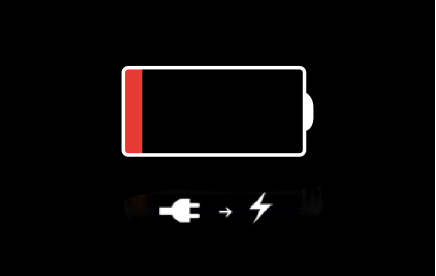
3. Low Battery
Cause: If your device’s battery is too low, the update might not finish.
Solution: Ensure your device is at least 50% charged or plugged into a charger before starting the update.
4. Apple Server Issues
Cause: Apple’s servers can become overloaded, especially shortly after a major update release.
Solution: Wait for a while and try updating again later.
5. Corrupted Update File
Cause: If the update file becomes corrupted during download, the installation will fail.
Solution: Delete the partially downloaded file and try downloading and installing the update again.
6. Software Conflicts
Cause: Third-party apps, jailbreaking, or custom configurations may interfere with the update process.
Solution: Reset your settings to their default or remove unauthorized modifications before attempting the update.
7. Compatibility Issues
Cause: The update might not be compatible with older devices.
Solution: Check if your device supports the update by referring to Apple’s compatibility list.
8. Unstable Connection to Update Tools
Cause: If updating via a computer, issues with USB cables or ports may disrupt the process.
Solution: Use an official, certified cable and make sure iTunes (on Windows) or Finder (on macOS) is up to date.
9. Background Processes
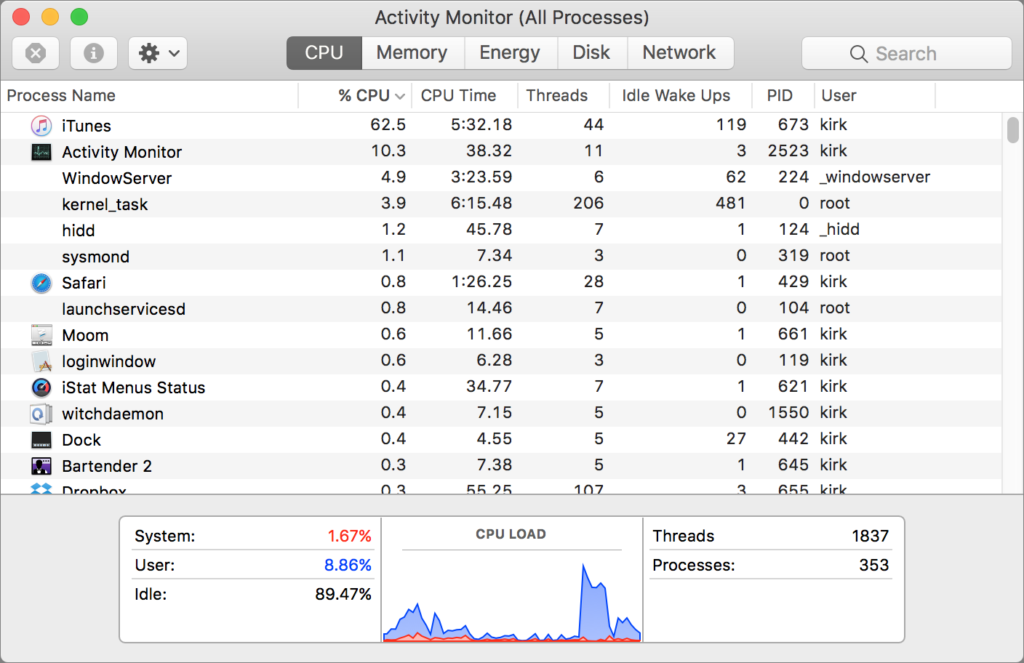
Cause: Running apps or system tasks can sometimes interfere with the update.
Solution: Restart your device and ensure no apps are running before attempting the update.
If problems continue, try updating via Finder (macOS) or iTunes (Windows) by connecting your device to a computer. If that doesn’t work, consider resetting your device or reaching out to an Apple service provider for support.
- Why should I look for a Mac refurbished by Apple Certified Mac Technicians?

- Why does Apple matter when buying a MagSafe 1 or 2 adapter?

- What is the iPhone Air?

- What does it mean when an external hard drive format is for Mac or for Windows?

- Designed by Apple in California. Loved in Colorado.

- How do I migrate my iTunes and App Store purchases to another Apple Account.

- Boulder Mac Repair is currently purchasing Apple Devices for resale.

- What’s new in iOS 26?
