
It is a good security practice to change your Mac Passwords periodically.
A Mac user password is the credential linked to an individual account on a Mac. It grants access to the system, allows software installations, enables modifications to settings, and authorizes administrative actions.
TABLE OF CONTENTS
What are the types of Mac Passwords?
Login (Mac User) Password: The credential used to access your Mac account.
Administrator Password: Needed for modifying system settings, installing applications, and managing user accounts. (May be the same as your Login Password.)
Apple ID Password: Used to sign in to iCloud, the App Store, and other Apple services. This is distinct from your Mac login password.
Firmware Password (Optional): Enhances security by blocking unauthorized booting from external drives.
FileVault Password (Optional): Protects your Mac’s startup disk through Apple’s encryption feature, safeguarding your data from unauthorized access. (Typically matches your Login Password.)
Screen Time Password (Optional): A four-digit code that restricts changes to Screen Time settings on a Mac, iPhone, or iPad, helping enforce app limits, content restrictions, and privacy controls.
What are the differences between a Login Password (User) and an Administrator Password (Admin) and how should I choose which to use?
|
Feature
|
Login (User) Password
|
Administrator (Admin) Password
|
|---|---|---|
|
Purpose
|
Used to log in and access personal files.
|
Used for system-wide changes, installing apps, and managing other users.
|
|
Privileges
|
Limited to personal account settings and files.
|
Full control over system settings, software installations, and user management.
|
|
System Changes
|
Cannot modify system settings that affect all users.
|
Can change security settings, create/delete users, and modify system files.
|
|
Software Installation
|
Cannot install apps that require admin approval.
|
Can install, update, and remove apps that require system permissions.
|
|
Required for FileVault
|
Needed to unlock the Mac if FileVault is enabled.
|
Which One Should You Use?
-
If you own the Mac or need full control, set up an administrator account with an admin password.
-
If multiple people share the Mac, create one admin account for system management and separate standard user accounts for daily use.
-
For enhanced security, use a standard account for everyday tasks and keep an admin account separate for system changes. This minimizes the risk of malware infections or unintended system modifications.
How Do I change a Login Password on a Mac?
How to Change Your Login Password
-
Open System Settings (Apple menu > System Settings).
-
Navigate to Users & Groups.
-
Select your user account.
-
Click Change Password.
-
Enter your current password, then type and confirm your new password.
-
Click Change Password to save your changes.
How to Change Another User’s Login Password (Admin Account Required)
An Administrator can reset another user’s Login Password (including standard users and other admins) without needing their current password.
-
Log in to an Administrator account.
-
Open System Settings (Apple menu > System Settings).
-
Go to Users & Groups.
-
Select the user account you want to update.
-
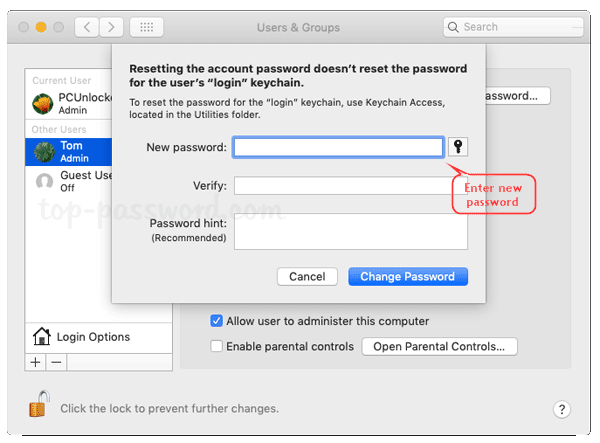
Click Reset Password.
-
Enter and confirm a new password.
-
Click Change Password to apply the update.
✅ The user can now sign in with the new password, but they may lose access to some Keychain-stored passwords if they don’t remember their old one.
💡 Tip: If important passwords were saved in Keychain, the user may need to reset Keychain upon logging in.
How Do I change an Administrator Password on a Mac?
How to Change Your Administrator Password
-
Open System Settings (Apple menu > System Settings).
-
Select Users & Groups from the sidebar.
-
Click your Admin account, then choose Change Password.
-
Enter your current password, then type and confirm your new password.
-
Click Change Password to apply the update.
✅ Your administrator password is now successfully updated!
🔒 Note: A standard (non-admin) user cannot change an Administrator password. Only an Administrator has the ability to reset or modify admin credentials.
How Do I change a Firmware Password on a Mac?
How to Change or Remove a Firmware Password on a Mac
Changing or removing a Firmware Password requires macOS Recovery Mode, as it secures low-level system settings from unauthorized modifications.
Step 1: Enter macOS Recovery Mode
-
Shut down your Mac completely.
-
Turn it on and immediately press & hold:
-
Intel Macs: Press Command (⌘) + R until the Apple logo or spinning globe appears.
-
Apple Silicon (M1/M2) Macs: Press and hold the Power button until you see “Loading startup options”, then select Options > Continue.
-
Step 2: Access the Firmware Password Utility
-
From the Utilities menu, select:
-
“Startup Security Utility” (for newer Macs)
-
“Firmware Password Utility” (for older Macs)
-
-
Click Turn Off Firmware Password (or Change Password to modify it).
-
Enter the current firmware password when prompted.
-
If changing, enter and confirm a new firmware password, then save.
-
Click Quit Firmware Password Utility and restart your Mac.
Important Notes:
🔴 Forgot Your Firmware Password?
-
Apple does not provide a public reset option for security reasons.
-
You’ll need to visit an Apple Store or an authorized repair center with proof of purchase to reset it.
🔒 Firmware Password vs. Mac Login Password
-
The firmware password prevents unauthorized booting from external drives or macOS Recovery Mode.
-
It is separate from your Mac’s login password used to access your user account.
How Do I change an Apple Account (Apple ID) Password?
How to Change Your Apple ID Password
Updating your Apple ID password is essential for keeping your account secure. Follow these steps to change it on your Mac, iPhone, or iPad.
On a Mac
-
Open System Settings
-
Click the Apple menu () and select System Settings.
-
-
Go to Apple ID
-
In the sidebar, select Apple ID (you may need to click your name at the top).
-
-
Access Password & Security
-
Click Password & Security on the left side.
-
-
Change Password
-
Select Change Password and follow the on-screen instructions.
-
You may be prompted to enter your Mac login password first.
-
-
Enter and Confirm a New Password
-
Choose a strong password (12+ characters, including uppercase, lowercase, numbers, and symbols).
-
Click Change to finalize.
-
On an iPhone or iPad
-
Open Settings
-
Launch the Settings app.
-
-
Tap Your Name
-
At the top, tap your Apple ID profile.
-
-
Go to Password & Security
-
Select Password & Security.
-
-
Change Password
-
Tap Change Password and enter your device passcode if prompted.
-
-
Enter and Confirm a New Password
-
Type and confirm your new Apple ID password, then tap Change.
-
If You Forgot Your Apple ID Password
-
Visit Apple’s Account Recovery Page
-
Go to iforgot.apple.com.
-
-
Enter Your Apple ID
-
Type your Apple ID email address and click Continue.
-
-
Follow the Recovery Steps
-
Apple will guide you through resetting your password using your email, security questions, or a trusted device.
-
Important Notes
✅ After changing your Apple ID password, you’ll need to sign in again on all Apple devices and services (iCloud, App Store, iTunes, etc.).
🔒 If Two-Factor Authentication (2FA) is enabled, you may need to verify your identity using a trusted device after updating your password.
How Do I change a FileVault Password on a Mac?
A FileVault password is the same as your Mac login password when FileVault is enabled. To change it, you need to update your login password.
If You Remember Your Current Password
- Open System Settings
- Click the Apple menu () > System Settings.
- Go to Users & Groups
- Select Users & Groups from the sidebar.
- Change Your Password
- Click your user account, then choose Change Password.
- Enter your current password, then type and confirm a new password.
- Click Change Password to save.
✅ Your FileVault password is now updated!
If You Forgot Your FileVault Password
Option 1: Use Your FileVault Recovery Key
- At the login screen, click “Forgot Password?”
- Select “Enter Recovery Key” and type in your FileVault Recovery Key (provided when FileVault was enabled).
- Reset your password and log in.
Option 2: Erase Your Mac (Last Resort)
⚠️ If you lose both your password and Recovery Key, your data cannot be decrypted. The only option is to erase your Mac using macOS Recovery Mode.
How Do I change a Screen Time Password on a Mac?
You can update your Screen Time password based on whether you remember your current passcode.
If You Remember Your Current Screen Time Password
-
Open System Settings
-
Click the Apple menu () > System Settings.
-
-
Go to Screen Time
-
Select Screen Time from the sidebar.
-
-
Change Your Passcode
-
Scroll down and click Change Screen Time Passcode.
-
Enter your current passcode.
-
Choose Change Passcode and enter a new passcode.
-
Confirm your new passcode to complete the update.
-
✅ Your Screen Time passcode has been successfully changed!
Use Apple Account (AppleID) to reset Mac Passwords.
Certain passwords on a Mac can be reset using your Apple ID, including the login and Screen Time passwords. Here’s a breakdown of what can and can’t be reset with Apple ID:
Passwords You Can Reset with Your Apple ID
-
Login Password
-
If FileVault is not enabled, you can reset your Mac login password from the login screen using your Apple ID.
-
After entering the wrong password a few times, you’ll see the option to reset it with your Apple ID.
-
-
Screen Time Password
-
If you’ve set up Apple ID recovery for Screen Time, you can reset your Screen Time passcode using your Apple ID.
-
After entering the wrong passcode, you’ll be given the option to reset it via your Apple ID.
-
Passwords You Cannot Reset with Your Apple ID
-
Firmware Password
-
The Apple ID cannot be used to reset or recover the Firmware Password. You’ll need to use macOS Recovery Mode or visit Apple Support.
-
-
FileVault Password
-
The FileVault password is tied to your login password and cannot be reset using your Apple ID. You’ll need to use your recovery key or follow specific FileVault recovery methods.
-
-
Administrator Password
-
While the login password can be reset via Apple ID, the admin password (for system changes) might not support Apple ID recovery. You may need another admin account, Recovery Mode, or a FileVault recovery key.
-
How to Reset Your Mac Password Using Apple Account
-
Go to the Login Screen
-
Shut down your Mac, then power it on again.
-
-
Enter the Wrong Password
-
At the login screen, enter the wrong password three times.
-
-
Look for the Reset Option
-
After entering the wrong password, you should see a message like:
-
“If you’ve forgotten your password, you can reset it using your Apple Account.”
-
-
Click Reset it using your Apple Account (this option appears only if you’ve enabled Apple ID password reset at login).
-
-
Enter Your Apple Account Credentials
-
Enter your Apple Account email and password when prompted.
-
After entering your credentials, you’ll be able to create a new login password for your Mac.
-
-
Complete the Process
-
After resetting your password, you’ll be able to log in using your new password.
-
What Happens After Resetting the Password?
-
Keychain Access
-
If you reset the password using your Apple ID, your Keychain (saved passwords) may not sync with the new login password. You may need to reset or delete the Keychain if issues arise with saved passwords.
-
Important Notes
-
This method only works if FileVault is not enabled or if you have set up Apple ID password recovery for your Mac.
-
If FileVault is enabled, you may be prompted to enter your FileVault recovery key or use other recovery options.
How do I create a secure Password for my Mac?
- Use at Least 12 Characters
The longer the password, the harder it is to crack. Aim for 12 characters or more. - Mix Uppercase and Lowercase Letters
Combine both uppercase (A, B, C…) and lowercase (a, b, c…) letters to make your password harder to guess. - Include Numbers and Symbols
Add numbers (1, 2, 3…) and symbols (like @, #, $, %, &, *) to increase complexity. - Avoid Common Words and Phrases
Don’t use easily guessable words like “password”, “123456”, or your name. Avoid using common phrases, birthdays, or any personal information. - Use Random Combinations
Use a combination of random letters, numbers, and symbols. For example:C9!vA7r$zPis much more secure than a word-based password. - Consider a Passphrase
A passphrase can be easier to remember but still secure. Combine random words with symbols or numbers, like:Blue$Tree!76Mountain
This is long and contains a variety of character types. - Enable Two-Factor Authentication (2FA)
If available, enable 2FA for an extra layer of security. This requires not only your password but also a second piece of information (like a code sent to your phone). - Use a Password Manager
Password managers can generate complex, random passwords for you and store them securely, so you don’t have to remember them all. - Change Passwords Regularly
It’s good practice to change your passwords periodically, especially for sensitive accounts.
Example of a Strong Password:
@v8tX!kP5w$F4a3&
It’s long, contains uppercase and lowercase letters, numbers, and special characters, and it’s random.
Avoiding Weak Passwords:
- Don’t use personal information (like your name, birthdate, or username).
- Don’t use dictionary words (even when combined with numbers) as they can be cracked with “dictionary attacks.”
What are some tips for remembering my passwords while keeping them secure?
Remembering passwords while ensuring they remain secure can be tricky, but these tips and strategies can help you maintain both security and convenience:
1. Use a Password Manager
A password manager securely stores all your passwords and can generate strong, random passwords for you.
Popular options like 1Password, LastPass, and Bitwarden allow you to keep track of all your login details without the need to remember them.
Most password managers use encryption, so even if someone gains access to your vault, your information remains safe.
2. Create a Memorably Complex Passphrase
Passphrases are longer, easier to remember, and still very secure. For example, a random collection of words combined with numbers or symbols:
-
“Purple$Sky42!Tree”
-
“Coffee*Tiger7#Moon”
The more random and longer the passphrase, the stronger it is.
3. Use a System for Memorizing Passwords
Mnemonic devices or associations can help you remember random passwords. For example, take the first letter of each word from a favorite quote or phrase:
-
“The quick brown fox jumps over the lazy dog!”
Could become:-
“TqbfJ0v3r!T@dog”
-
4. Leverage Two-Factor Authentication (2FA)
2FA adds an additional security layer. Even if you forget your password, the second factor (usually a code sent to your phone) lets you access your accounts.
Many password managers even integrate 2FA, managing this extra step for you.
5. Create a Master Password (for Multiple Accounts)
If you find it tough to remember many passwords, create a secure master password for accessing all accounts in your password manager.
You only need to remember this one password.
6. Write Down Your Passwords (Securely)
If you’re uncomfortable with password managers, consider writing your passwords down on paper in a secure location(like a safe or locked drawer).
Never store passwords on sticky notes around your desk!
7. Avoid Reusing Passwords
Reusing passwords across multiple accounts increases the risk of a breach. If one account is compromised, it opens the door to others.
A password manager can help create unique passwords for each account.
8. Set Password Reminders, Not Passwords
Use security questions or a trusted person to help remind you of your passwords when needed. Some people use a trusted friend to securely track critical information.
9. Use Biometric Authentication (if available)
Many devices now support fingerprint scanning or face recognition, which offer a secure and easy way to access your accounts.
Make sure your biometric data is protected by a strong password.
10. Regularly Update Your Passwords
Updating passwords regularly is an essential security measure. With a password manager, changing passwords frequently is simple, and you don’t have to worry about forgetting them.
Bonus Tip: Keep Backup Access Options
For important accounts like email or banking, set up backup recovery options (alternative email addresses, security questions, or trusted contacts) so you can regain access if you forget a password.
These strategies can help you keep your passwords secure while making it easier to manage them!
Why should I remember my Mac Password if I have TouchID?
Touch ID provides a quick and secure way to unlock your Mac, but there are several important reasons why you should still remember your Mac password:
1. Touch ID Isn’t Available at All Times
Touch ID works only when your Mac is awake and in use. If your Mac is restarted, turned off, or if you’re in macOS Recovery Mode, you’ll need to enter your password to unlock it.
Additionally, some applications or services may still request your password even if Touch ID is enabled for system login.
2. Touch ID Can Fail
Although rare, there are instances when Touch ID may not recognize your fingerprint, especially if your fingers are wet, dirty, or the sensor is malfunctioning.
In these cases, having your password as a backup ensures you can still access your Mac without issue.
3. System Preferences and Security Settings
Certain system settings, including security preferences like changing your password or enabling FileVault, may require you to enter your password directly rather than using Touch ID.
When updating critical system settings or making security-related changes, you may be prompted to enter your Mac password.
4. FileVault and Encrypted Disks
If FileVault (full disk encryption) is enabled, your Mac’s hard drive is encrypted, and during startup, the system may require your password to unlock the disk.
Touch ID cannot be used for this process, so you need your password to access encrypted files when Touch ID can’t authenticate.
5. Touch ID for Multiple Users
If your Mac is shared with others, Touch ID is tied to your fingerprint and works only for your account.
Each user may need to remember their own password to switch users or make system changes.
6. Account Recovery
If you forget your Touch ID settings or need to reset your Mac due to a system failure or other issues, you may need your password for account recovery and Apple ID access.
Summary
Although Touch ID simplifies unlocking your Mac and authenticating actions, your Mac password remains essential for system recovery, security settings, and accessing encrypted data. Always remember your password as a backup for these situations.
- Why should I look for a Mac refurbished by Apple Certified Mac Technicians?

- Why does Apple matter when buying a MagSafe 1 or 2 adapter?

- What is the iPhone Air?

- What does it mean when an external hard drive format is for Mac or for Windows?

- Designed by Apple in California. Loved in Colorado.

- How do I migrate my iTunes and App Store purchases to another Apple Account.

- Boulder Mac Repair is currently purchasing Apple Devices for resale.

- What’s new in iOS 26?
