
The Down-low on Updates: What You Need to Know About macOS
You might already be aware that Apple rolls out a fresh version of its Mac operating system annually. Each release continues to receive essential security patches and reliability enhancements for a three-year window. But what does this mean for your Mac?
At Boulder Mac Repair, we’re here to break it down. Whether you’re curious about the newest macOS, previous editions, system requirements, or wondering what your options are if your Mac can’t handle the upgrade — we’ve got you covered. Here’s the scoop:
TABLE OF CONTENTS
First of All, What is an Operating System?
The operating system is the central backbone of your computer—it’s the master controller that orchestrates memory, tasks, applications, and hardware. Without it, your machine is just an idle shell. Picture it like the command center of a busy metropolis, directing digital traffic with precision. It ensures everything flows smoothly and securely, allowing your computer to operate seamlessly and do what you need it to do.
The Latest macOS
Apple’s latest operating system, macOS 15 Sequoia, made its debut in September 2024. It introduces cutting-edge additions like iPhone screen mirroring and Apple Intelligence—Apple’s unique take on artificial intelligence. This smart system brings enhanced language tools, AI-generated visuals, and a more capable, conversational Siri. Sequoia marks the 21st major macOS release, following a long line of memorable predecessors that many longtime Mac users may recall:
-
macOS 14 Sonoma – September 26, 2023
-
macOS 13 Ventura – October 25, 2022
-
macOS 12 Monterey – October 25, 2021
-
macOS 11 Big Sur – November 19, 2020
-
macOS 10.15 Catalina – October 7, 2019
-
macOS 10.14 Mojave – September 24, 2018
-
macOS 10.13 High Sierra – September 25, 2017
-
macOS 10.12 Sierra – September 20, 2016
-
OS X 10.11 El Capitan – September 30, 2015
What Mac OS Versions Are Still Supported?
At the moment, Apple maintains active security and performance updates for the three most current macOS releases: macOS 15 Sequoia, macOS 14 Sonoma, and macOS 13 Ventura. By late 2025, it’s expected that a new operating system will be unveiled—and macOS 13 will likely be retired from Apple’s update roster.
But there’s an even more significant shift on the horizon. Since Apple’s move away from Intel processors in favor of their own Apple Silicon chips back in 2020, it’s widely believed that support for all macOS versions built for Intel-based Macs will eventually come to an end.
How Do I Know Which Version I’m Using?
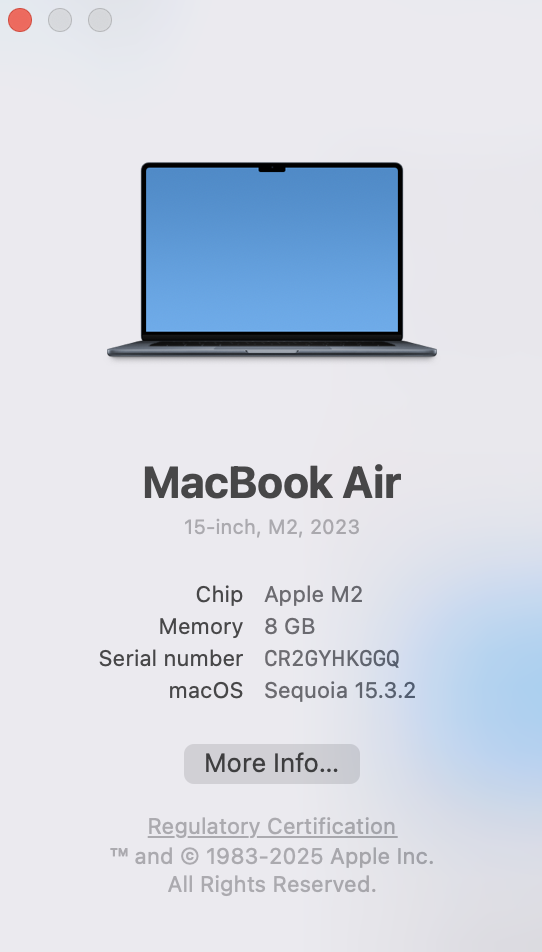
Start by clicking the Apple logo in the upper-left corner of your screen, then select “About This Mac” from the dropdown list. A new window will appear, showing you the name and version of your current macOS. Need the build number too? Just click directly on the version number, and it’ll be revealed.
The Best Program Versions to Run on Each OS
f you’re using a macOS from the last three years, (macOS 15 Sequoia, macOS 14 Sonoma, or macOS 13 Ventura), you can seamlessly use today’s most popular apps, including Apple tools and third-party programs. A handful of Apple’s newest features are only available on macOS 15 Sequoia, like iPhone Mirroring, a new passwords app, and improved window tiling.
If you’re running older versions of macOS, you might not be able to use some applications or hardware, which can lead to usability problems; and your computer may become more vulnerable to security risks. We recommend keeping your OS updated if possible.
How to Update Your OS
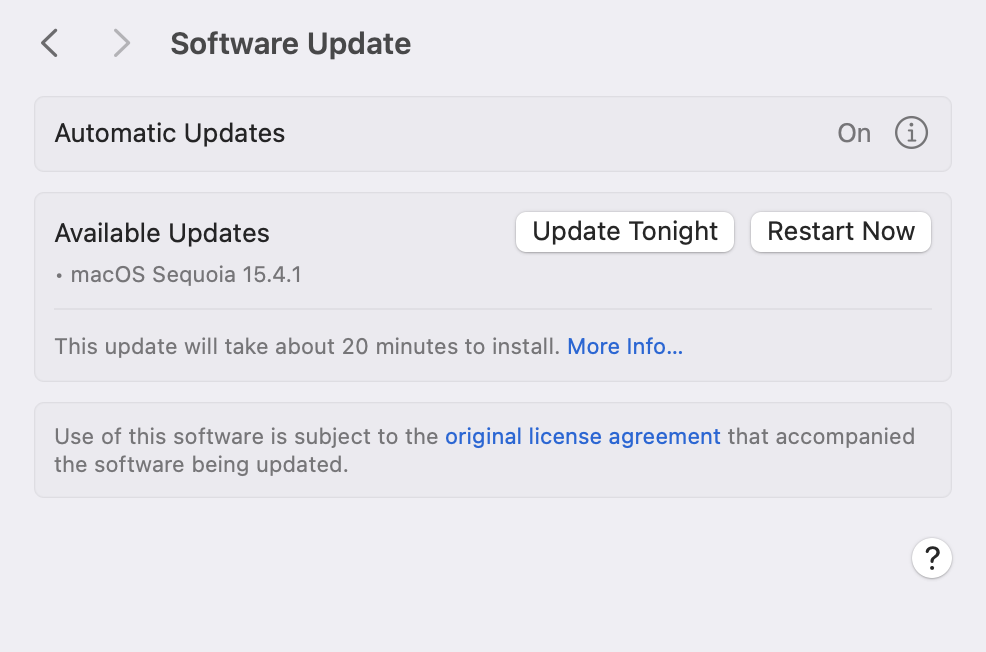
To update, click on the apple icon on the left corner of your screen. Choose system settings. Click general in the window that opens. Then click Software Update on the right. It will automatically check for new software. If new software is available for your Mac, click the update or upgrade button to install and complete the prompts. If new software is not available, it may already be up to date, or the latest software may not be compatible with your Mac model.
What if My Mac Is Too Old For The Update?
If your Mac is more than 8 to 10 years old, there’s a good chance it won’t be able to run the newest versions of macOS. But don’t stress—there are still a few solid paths forward:
Upgrade to a brand-new Mac from Apple: It’s definitely a financial commitment, but a current model will offer complete compatibility and peak performance—whether you’re working, gaming, writing, designing, or just browsing.
Consider a refurbished Mac from Boulder Mac Repair: Every system we offer has been meticulously restored, cleaned, upgraded, and tested to ensure it’s running like new—with the latest macOS pre-installed. Going refurbished means you’ll save a chunk of change while still getting dependable Mac performance. All purchases include a 30-day warranty, with the option to extend coverage to six months for a small added cost.
Let us tune up your current Mac: Got an older system you’re not ready to part with? Bring it in. Depending on your model, we might be able to tweak the software to get a newer macOS running—even if Apple says it’s unsupported. We’ll evaluate your machine and walk you through what’s possible.
Visit Us For All Your macOS Needs
If you’re having trouble navigating a new update, running macOS on an older machine, or using the latest apps, we can help! Bring in your machine and let us take a look. We’ll give you a free evaluation and price quote for services. No appointment necessary.
- Why should I look for a Mac refurbished by Apple Certified Mac Technicians?

- Why does Apple matter when buying a MagSafe 1 or 2 adapter?

- What is the iPhone Air?

- What does it mean when an external hard drive format is for Mac or for Windows?

- Designed by Apple in California. Loved in Colorado.

- How do I migrate my iTunes and App Store purchases to another Apple Account.

- Boulder Mac Repair is currently purchasing Apple Devices for resale.

- What’s new in iOS 26?
