
Storage settings on the Mac can give you an idea of what is taking up space on your Mac however it’s not a full detail.
Storage Settings on a Mac is a dedicated section in macOS that helps you visualize and manage your disk space efficiently. It categorizes your storage usage—such as Apps, Documents, System, Photos, and more—giving you a clear breakdown of what’s occupying space. Alongside this overview, macOS offers smart recommendations to help you free up storage and keep your Mac running smoothly.
TABLE OF CONTENTS
Table of Contents
How do I access storage settings on my Mac?
How to Access Storage Settings
On macOS Ventura, Sonoma, or Sequoia:
-
Click the Apple menu and select System Settings.
-
In the sidebar, click General.
-
On the right, choose Storage.
On macOS Monterey or earlier:
-
Click the Apple menu.
-
Select About This Mac.
-
Click the Storage tab.
What is “other” in the profile in my storage settings?
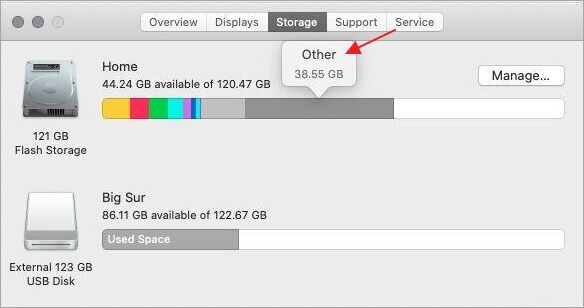
On a Mac, within Storage settings—accessed via > About This Mac > Storage on older versions or System Settings > General > Storage in newer macOS releases—the section labeled “Other” (or sometimes shown as an unlabeled gray segment) typically represents files that don’t fit neatly into standard categories such as Apps, Documents, Photos, Music, or System. This category can include a wide range of data, like caches, temporary files, disk images, plug-ins, extensions, and various system or app support files.
“Other” storage can include:
- System and temporary files not listed under “System”
- Cache files (e.g., browser cache, app caches)
- App support files
- Disk images and archives (.dmg, .zip, .iso files)
- Fonts, extensions, and plugins
- Old iOS backups (if stored locally)
- Virtual machine files (e.g., from Parallels or VMware)
- Log files and diagnostic reports
- Files stored in hidden folders (like
/privateor/var)
What is “system data” in the profile in my storage settings?
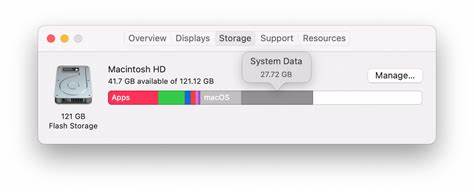
📦 What’s Included in System Data:
- macOS System Files
- The core components of the operating system itself.
- Temporary and Cache Files
- App and system caches
- Browser caches
- Log files
- Spotlight indexing files
- Virtual memory (swap files)
- Application Support Files
- Data required for macOS and apps to function properly (e.g., GarageBand sound libraries, Logic Pro resources).
- Time Machine Local Snapshots
- Temporary backups stored on your internal drive (if Time Machine is enabled).
- System Extensions and Drivers
- Kernel extensions, fonts, and low-level system libraries.
- Old iOS Device Backups
- If you’ve ever backed up an iPhone or iPad to your Mac.
- Disk Images and Archives
- Mounted or downloaded
.dmg,.pkg,.zip, and.isofiles that haven’t been deleted.
- Mounted or downloaded
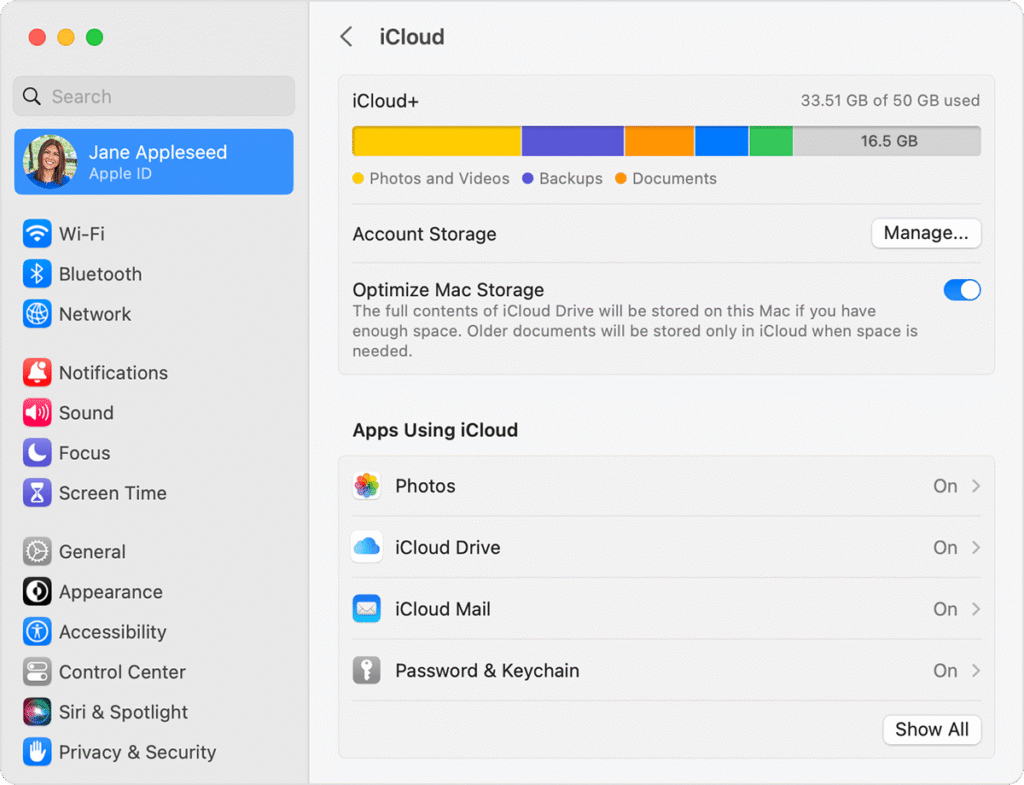
Can my iCloud data affect the amount of data in Storage settings, what does it show as?
Yes, your iCloud data can influence what appears in Storage settings on your Mac—both in terms of local storage usage and how the data is categorized. Here’s a breakdown of how it works:
📁 How iCloud Data Impacts Storage Settings
1. iCloud Files Stored Locally
If you use iCloud Drive or sync your Desktop & Documents folders, files you’ve recently opened or marked as “Keep Downloaded” are physically stored on your Mac and count toward your local storage. These files typically show up in:
- Documents — for standard files synced from iCloud Drive
- iCloud Drive — in certain macOS versions, especially older ones
- System Data — for cached or temporary iCloud-related files
- Other Users — if files belong to another Apple ID or user account
2. Files Stored Only in iCloud
Files that remain exclusively in iCloud and haven’t been downloaded to your Mac don’t consume local storage space. However, you’ll still see them in Finder with a cloud icon featuring a downward arrow, indicating they’re available for download.
📊 How iCloud Data Appears in Storage Categories
| iCloud Item Type | How It Shows Up in Storage Settings |
|---|---|
| iCloud Drive (downloaded) | Documents or iCloud Drive (depends on macOS version) |
| Desktop & Documents folders | Documents |
| iCloud Photos (downloaded) | Photos |
| Mail in iCloud (downloaded) | |
| iCloud Music Library | Music or Apple Music |
| Cached iCloud Data | System Data |
🧹 Managing Local iCloud Storage Usage
- Enable “Optimize Mac Storage”:
Go to System Settings > Apple ID > iCloud > iCloud Drive and toggle on “Optimize Mac Storage.”
This setting keeps older files in the cloud and removes local copies automatically when disk space is low. - Manually Remove Downloads:
In Finder, right-click on any downloaded iCloud file and select Remove Download. This deletes the local copy but retains the file safely in iCloud.
This approach helps balance your local storage while keeping your files accessible across all your Apple devices.
How do I control “System Data” and “Other” on my Mac?

A Boulder Mac Repair Tune-Up provides a professional and highly effective solution to regain control over those elusive “Other” and “System Data” storage categories on your Mac. Over time, these areas quietly accumulate leftover caches, system logs, hidden files, failed updates, and temporary app data—items that are often invisible or inaccessible to everyday users. Our tune-up service goes well beyond the capabilities of built-in macOS tools or simple cleanup apps, safely clearing out unnecessary clutter and freeing valuable disk space without risking your data or harming your system.
During the tune-up, our skilled technicians carry out an in-depth cleanup process. This includes removing outdated cache files, obsolete system logs, local Time Machine snapshots, and traces left behind by uninstalled applications. We also pinpoint large hidden app support files and sort through iCloud-related data that may be taking up more local storage than needed. These thorough optimizations can drastically shrink the size of the “Other” and “System Data” categories—often reclaiming tens of gigabytes of space, which is especially impactful on Macs with smaller storage capacities.
Beyond just freeing up space, this tune-up can boost your Mac’s speed and responsiveness. Without the drag of excess background data and disk clutter, apps open faster, files load quicker, and your overall system performance improves. Whether you’re looking to breathe new life into an aging Mac or simply want a smoother, more efficient machine, a Boulder Mac Repair tune-up is a smart, cost-effective way to optimize your system and maximize your storage.
- Why should I look for a Mac refurbished by Apple Certified Mac Technicians?

- Why does Apple matter when buying a MagSafe 1 or 2 adapter?

- What is the iPhone Air?

- What does it mean when an external hard drive format is for Mac or for Windows?

- Designed by Apple in California. Loved in Colorado.

- How do I migrate my iTunes and App Store purchases to another Apple Account.

- Boulder Mac Repair is currently purchasing Apple Devices for resale.

- What’s new in iOS 26?
