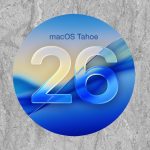
macOS 26 Tahoe is set to release in Fall 2025.

macOS, which first launched as Mac OS X with version 10.0 “Cheetah” in 2001, marked a bold new direction for Apple—a Unix-based foundation paired with the fluid Aqua interface and a modern core built on Darwin. Each successive release brought meaningful enhancements: “Puma” (10.1) stabilized the early experience, “Jaguar” (10.2) introduced hardware-accelerated Quartz Extreme graphics, and “Panther” (10.3) debuted features like Exposé and an overhauled Finder. With 10.4 “Tiger,” Apple added system-wide search via Spotlight and the handy Dashboard widgets, while 10.5 “Leopard” introduced Time Machine backups and broad 64-bit architecture support. The Snow Leopard release (10.6) doubled down on refinement and optimization, paving the way for tighter iOS alignment in Lion (10.7) and Mountain Lion (10.8), which brought features like iCloud integration and Launchpad. Mavericks (10.9) began the era of free updates, followed by Yosemite (10.10), which embraced a flatter design and introduced Handoff for seamless device transitions. macOS continued evolving through El Capitan, Sierra, High Sierra, Mojave, and Catalina—each enhancing performance, functionality, and security—until the 2020 release of macOS 11 Big Sur, which heralded a design overhaul and Apple Silicon support. The momentum carried into macOS 12 Monterey and 13 Ventura with deeper ecosystem integration, and then into macOS 14 Sonoma and 15 Sequoia, which advanced user productivity, strengthened privacy, and ushered in Apple Intelligence—transforming macOS into a smart, cloud-connected operating system ready for the future.
TABLE OF CONTENTS
Table of Contents
What changes are coming in macOS 26 Tahoe?
macOS 26 Tahoe ushers in a bold new era for Apple’s desktop platform, delivering the most sweeping interface redesign in over a decade. Central to this transformation is the Liquid Glass aesthetic—a luminous, translucent visual language featuring a see-through Menu Bar, frosted Dock, softened toolbars, and system icons that shift effortlessly between Light and Dark Modes. Personalization gets a major glow-up too: users can now tag folders with color and emoji, customize Control Center with handy toggles, and take advantage of smarter, more flexible desktop widgets.
Spotlight takes a giant leap beyond search, evolving into an all-purpose command hub. The refreshed Spotlight can now scour everything from files and apps to system preferences, clipboard entries, and even data from your iPhone. It supports more than 100 native actions—from composing emails to playing media—without needing to open any apps. With Quick Keys (clever two-letter shortcuts) and a new App Intents API, third-party developers can plug their tools directly into Spotlight, making it a true powerhouse for getting things done.
macOS Tahoe also tightens its embrace of the iPhone. A fully native Phone app lands on the Mac for the first time, offering full access to call history, voicemail, contacts, and Apple Intelligence features like real-time Call Screening, Hold Assist, and Live Translation. Live Activities—such as Uber arrivals or game scores—can now show up in your Mac’s Menu Bar, and clicking them can instantly trigger iPhone mirroring, turning your Mac into a window to your iPhone.
Artificial intelligence steps into the spotlight with Apple Intelligence deeply woven into macOS 26. Built-in tools let you auto-summarize content, generate personalized emoji (“Genmoji”), and create visuals using Image Playground—all directly from apps like Notes, Messages, or Shortcuts. Siri is undergoing a full redesign, becoming more context-aware and screen-aware, although its full capabilities will arrive over time. Real-time language translation is also now built into both FaceTime and the new Phone app, breaking communication barriers on the fly.
Gaming, long underrepresented on the Mac, gets a significant boost. The new Apple Games app acts as a centralized hub for your game library, with personalized recommendations and integrated Game Center features. A new Game Overlay allows for in-game voice chat, live performance tweaking, and other tools without leaving the action. Under the hood, Metal 4 brings support for smoother graphics with Frame Interpolation and Denoising, while native Linux containers and Foundation Model APIs give developers powerful new creative avenues.
macOS Tahoe also brings a suite of fresh and enhanced apps. The long-awaited Journal app debuts on Mac with timeline views, iCloud syncing, and geotagged entries. The new Magnifier app pairs with your iPhone to stream real-time zoomed video to your Mac’s display. Safari introduces floating tab views and improved anti-fingerprinting protection, and the Notes app gains built-in voice memo recording. Recovery Assistant makes diagnosing and repairing both Apple Silicon and Intel Macs easier than ever.
Apple continues advancing digital accessibility with features designed for more inclusive computing. New additions include system-wide Vehicle Motion Cues to reduce motion-related discomfort, an Accessibility Reader for better on-screen clarity, full support for braille devices, and enhancements to Personal Voice that allow users to build and use personalized voice replicas.
What Macs are supported on macOS 26 Tahoe?
macOS 26 Tahoe brings a bold new chapter to the Mac, and it’s designed with Apple Silicon front and center. Every Mac powered by Apple’s custom M-series chips—from the original M1 launched in 2020 to the latest M4—fully supports this release. That includes all MacBook Air models from 2020 onward, the 13-inch and 14-inch MacBook Pro lineup with any M-series chip, the Mac mini (starting with M1), the colorful 24-inch iMac introduced in 2021, and the high-performance Mac Studio and Mac Pro towers built on Apple Silicon. These machines aren’t just compatible—they’re built for the future of macOS and will continue receiving feature-rich updates for years to come.
Intel Macs, however, are reaching their final stop with Tahoe. macOS 26 is the last major version to support Intel processors, and even then, only a select few recent models make the cut. These include the 2019 16-inch MacBook Pro, the 2020 13-inch MacBook Pro with four Thunderbolt 3 ports, the 2020 27-inch iMac, and the modular 2019 Mac Pro. While these Macs will still get essential security patches for the foreseeable future, they won’t be eligible for next year’s macOS 27 or any newer releases.
That leaves many earlier Intel systems—such as the 2018 and 2019 MacBook Airs, the 2018 Mac mini, the 2019 21.5-inch iMac, and the 2017 iMac Pro—officially out of the loop with this release. Though these machines once offered impressive performance, Apple is now fully steering the macOS experience toward the speed, energy efficiency, and advanced AI capabilities made possible by Apple Silicon.
Not sure where your Mac stands? Click the Apple logo in the top-left corner and choose “About This Mac” to find your model and chip. If your hardware is supported, you’ll be able to access the public beta of macOS 26 Tahoe starting in July 2025, with a full rollout expected later in the fall. More than just an upgrade, Tahoe represents a defining shift toward an all-Apple Silicon future.
✅ Supported Macs
| Mac Type | Apple Silicon | Intel (Tahoe‑eligible) | Intel (unsupported) |
|---|---|---|---|
| MacBook Air | 2020+ | ❌ | 2020 Intel models |
| MacBook Pro | 2020+ | 16″ 2019, 13″ (4‑port) 2020 | 2018–2019 Intel models |
| iMac | 2020+ | 27″ Intel 2020 only | 2019 iMac, 2017 iMac Pro |
| Mac mini | 2020+ | ❌ | 2018 Intel mini |
| Mac Studio | 2022+ | ❌ | ❌ |
| Mac Pro (tower) | — | 2019 model only | — |
How Do I prepare to upgrade to macOS 26 Tahoe?
Getting ready to upgrade to macOS 26 Tahoe is more than just a download—it’s a smart move toward embracing a redesigned interface, powerful AI tools, and, for some Macs, the final chapter of Intel support. Start by checking if your Mac qualifies. All Apple Silicon models—from the first M1 MacBook Air to the latest M4 systems—are good to go. A few recent Intel machines also make the list: the 2019 16-inch MacBook Pro, the 2020 13-inch MacBook Pro with four Thunderbolt 3 ports, the 2020 27-inch iMac, and the 2019 Mac Pro. To confirm, click the Apple icon in your top-left corner and choose “About This Mac.”
Next step: back up your stuff. A reliable backup is your safety net before any major update. Apple’s Time Machine offers a simple, built-in way to protect your files, while third-party options like Carbon Copy Cloner or SuperDuper!provide more advanced, bootable backups. Backing up means you’re covered in case something goes sideways during installation.
After securing your data, clear out some room. macOS 26 may require 20–25 GB of free space, so take this as a chance to do some digital spring cleaning. Uninstall unused apps, empty the Trash, and delete files you no longer need. Visit System Settings > General > Storage to check space and get personalized cleanup suggestions. Tools like CleanMyMacor DaisyDisk can help tidy things up without hassle.
Before diving into the upgrade, make sure you’re running the latest version of your current OS—likely macOS 15 Sequoia. Staying up to date ensures a smoother transition and fewer surprises. Head to System Settings > General > Software Update and install any pending updates.
Don’t forget your apps and gear. Make sure your must-have software and accessories—like printers, scanners, or audio gear—are compatible with macOS 26. Some older tools may not play nice with the new system just yet. Visit developer websites or check tracking sites like RoaringApps for the latest compatibility info.
Know your Apple ID and login details. After the upgrade, your Mac may prompt you to sign in again to iCloud or other Apple services. Be ready with your Apple ID email, password, and any two-factor authentication device you use.
If you’ve got an Apple Silicon Mac, you’ll also want to explore Apple Intelligence, the suite of AI-powered features built into macOS 26. You’ll get access to Genmoji, AI summaries, Image Playground, and a smarter Siri. Some features might require setup or additional downloads, so it’s worth reading up on how to enable them once installed.
Consider your timing. You’ll have the option to install the public beta in July 2025, which gives you early access to new features but may come with bugs. If you rely on your Mac for mission-critical work or creative projects, waiting for the official release in Fall 2025 is probably the safer bet.
Before you begin the upgrade, think about enabling FileVault for full-disk encryption (if it’s not already on). You’ll find the setting under System Settings > Privacy & Security > FileVault. It’s also a smart time to review your passwords, update credentials, and make sure your iCloud Keychain or password manager is up to date.
Lastly, plan your upgrade window. The download and install can take anywhere from 30 minutes to over an hour, depending on your Mac’s age and your internet connection. Pick a time when you don’t need your Mac immediately afterward, and make sure it’s plugged in if it’s a laptop.
With the right prep, macOS 26 Tahoe can be a smooth and exciting leap forward. From its elegant new design to its intelligent productivity features, this release sets the tone for the future of the Mac. And if you hit a snag? Trusted local experts like Boulder Mac Repair or Denver Mac Repair are ready to help with backups, installs, and troubleshooting to get you up and running without stress.
Are there reasons I would not want to upgrade to Tahoe?
While macOS 26 Tahoe brings bold design changes, smarter system features, and tighter ecosystem integration, there are plenty of valid reasons to hit pause on the upgrade—at least for now. One of the biggest concerns? Software compatibility. If your daily work depends on older apps or niche tools—like specific audio plugins, design suites, or engineering software—there’s a chance those programs won’t yet be optimized for Tahoe. Developers often need time to catch up, and upgrading too soon could break key functionality or cause serious disruption to your workflow.
Peripheral support is another area that may give you pause. Printers, scanners, audio gear, and other connected devices sometimes lag behind when it comes to driver updates. Apple has a habit of phasing out legacy support in new versions of macOS, and that could leave otherwise functional hardware unusable post-upgrade. If you rely on specific external equipment to get things done, it’s smart to double-check for compatibility before committing to the new OS.
If you’re running an Intel-based Mac, your incentive to upgrade is significantly reduced. macOS 26 is the final stop for Intel compatibility, and many of Tahoe’s headlining features—like Apple Intelligence tools such as Genmoji, smart summaries, and the next-gen Siri—are exclusive to Apple Silicon. While some Intel Macs are technically supported, they won’t get the full range of enhancements that define this release.
Early-adopter instability is another consideration. Like most major OS releases, macOS 26 is likely to launch with a few rough edges—think bugs, crashes, or odd performance hiccups. If your Mac is mission-critical for work, school, or creative projects, it might be safer to wait until macOS 26.1 or 26.2 rolls out with refinements and bug fixes.
The revamped user interface may also not be to everyone’s taste. The new “Liquid Glass” look features more translucency, floating menus, rounded toolbars, and redesigned icons. While it’s a visual refresh for many, some users—especially those who prioritize consistency or manage teams with less tech experience—may find the changes distracting or disorienting.
You’ll also want to keep available storage in mind. The upgrade process typically demands at least 20 to 25 GB of free disk space. Macs running near capacity may struggle with installation or performance post-upgrade. If you’re tight on storage and not ready for a cleanup or upgrade, delaying the update might be more practical.
And if you’re planning to upgrade your Mac soon—particularly if you’re using an older Intel model—skipping this update might be a better use of your time. A new Apple Silicon Mac will ship with macOS 26 already installed and ready to use, complete with full Apple Intelligence support and a longer runway for future updates. Installing a major OS on a machine you’re about to replace may just add unnecessary complexity.
Users running non-standard setups, such as Hackintosh systems or older Macs using OpenCore Legacy Patcher, should also tread carefully. New system-level changes in early macOS releases can easily break patched configurations or render unofficial installations unbootable. If your Mac falls into this category, upgrading to Tahoe without careful testing is a gamble.
Finally, if you simply prioritize reliability over cutting-edge features, there’s nothing wrong with staying on macOS 15 Sequoia for a while. It remains a stable, well-supported operating system that will continue receiving security updates for years. If your current setup is working well, there’s no urgent reason to switch.
Bottom line: while macOS 26 Tahoe offers exciting new tools and a polished new look, it’s not necessarily the right move for everyone—especially right now. If your hardware, apps, or workflow aren’t fully ready, waiting a few months—or skipping this release altogether—might be the most sensible call.
Why macOS 26 and not macOS 16?
Apple has dubbed its newest operating system macOS 26 Tahoe—not macOS 16—as part of an ongoing strategy to bring version numbers in sync with the platform’s core infrastructure rather than just ticking up by one each year. This shift signals a deeper alignment with Apple’s internal development frameworks and moves away from the legacy conventions of the “OS X” era.
To understand this, it helps to look back: Apple’s modern desktop OS began life as Mac OS X (spoken as “ten”), which kept the “10” prefix across many annual updates—from version 10.0 all the way through 10.15—spanning nearly 20 years. Even as the system evolved with bold new capabilities, the versioning remained anchored at 10. That changed in 2020 with the release of macOS 11 Big Sur, a milestone that accompanied Apple’s transition to its own Silicon chips and marked the end of the OS X chapter.
From that point, each new release followed a simple upward climb: macOS 12 Monterey, macOS 13 Ventura, macOS 14 Sonoma, and macOS 15 Sequoia. But with macOS 26 Tahoe, Apple is skipping ahead—deliberately and for good reason.
The leap to version 26 is all about matching the Darwin version, the Unix-based core that powers macOS as well as iOS, iPadOS, and more. For example, macOS 15 Sequoia roughly lined up with Darwin 25, and this year’s macOS 26 corresponds with Darwin 26. By aligning these two versioning systems—public-facing macOS and the behind-the-scenes Darwin core—Apple simplifies the work for developers and engineers, making it easier to track compatibility, features, and system behavior across releases.
If Apple had labeled this release macOS 16, it would have broken that alignment, leading to unnecessary confusion for developers who rely on version precision when working with APIs and system features. Unifying the macOS and Darwin numbers makes the platform more transparent and consistent.
Of course, Apple also continues its tradition of naming each macOS version after iconic Californian places, and this year’s “Tahoe” draws from the stunning alpine lake straddling the California-Nevada border. This naming approach, which began with OS X Mavericks, not only reinforces Apple’s California heritage but also gives each version a unique identity.
In essence, macOS 26 Tahoe’s name and number reflect a behind-the-scenes evolution—one that brings coherence to the developer experience, better represents the system’s architecture, and continues Apple’s storytelling through memorable, place-based names.
How does Tahoe close the gap with iOS and iPadOS, how does it compare?
macOS 26 Tahoe pushes the Mac experience closer than ever to that of iPhones and iPads, blending familiarity with fresh innovation. This release doesn’t erase what makes the Mac unique—it reinforces it—while simultaneously adopting many of the conveniences and polish that define Apple’s mobile operating systems.
A standout shift is the introduction of the new Liquid Glass interface, which brings a striking visual overhaul. The look and feel echo the soft translucency and layered depth of iOS, with rounded toolbars, refined icons, and smoother visual transitions. The revamped Menu Bar and Dock reflect a mobile-like clarity, giving macOS a more unified visual identity across platforms—subtle but meaningful, even for users who primarily navigate with a keyboard and mouse.
Under the hood, Spotlight gets a serious upgrade. Borrowing heavily from iOS’s system-wide search, the new Spotlight merges everything—apps, documents, settings, clipboard entries, and even iPhone app content—into a single, intelligent search bar. It’s not just about finding stuff; users can now take action directly within Spotlight, like firing off a message or launching a playlist, just as easily as they would on an iPhone.
Tahoe also brings deeper continuity with the iPhone through a newly native Phone app for Mac and real-time Live Activities in the Menu Bar. This means users can handle calls, check voicemail, and access contacts without picking up their phone. At the same time, live updates—like sports scores, timers, or delivery statuses—appear just as they would on iOS, making the Mac feel like a more active participant in your digital routine.
The rollout of Apple Intelligence cements macOS’s place alongside Apple’s most adaptive platforms. Smart features like on-device summarization, image generation, and a far more capable Siri bring proactive assistance and contextual awareness directly to the desktop. These tools, especially optimized for Apple Silicon Macs, match the kind of intelligent, assistive experiences users have grown to rely on in iOS and iPadOS.
Even with all these mobile-inspired improvements, macOS hasn’t lost its roots. Tahoe keeps the Mac firmly in desktop territory with full support for windowed multitasking, traditional file management, and mouse-and-keyboard workflows. Where iPadOS leans toward taps and gestures, macOS stays anchored in productivity-first design, ideal for professionals and power users alike.
In short, macOS 26 Tahoe significantly narrows the gap between desktop and mobile, adopting the best elements of iOS and iPadOS—without compromising what makes the Mac a Mac. It’s a more intelligent, more connected, and more visually cohesive version of macOS, ushering in the next era of Apple ecosystem integration while staying true to the platform’s core strengths.
- What is the iPhone Air?

- What does it mean when an external hard drive format is for Mac or for Windows?

- Designed by Apple in California. Loved in Colorado.

- How do I migrate my iTunes and App Store purchases to another Apple Account.

- Boulder Mac Repair is currently purchasing Apple Devices for resale.

- What’s new in iOS 26?

- What’s new in iPadOS 26?
- What’s new in macOS 26 Tahoe?